Thanks for your patience during our recent outage at scalar.usc.edu. While Scalar content is loading normally now, saving is still slow, and Scalar's 'additional metadata' features have been disabled, which may interfere with features like timelines and maps that depend on metadata. This also means that saving a page or media item will remove its additional metadata. If this occurs, you can use the 'All versions' link at the bottom of the page to restore the earlier version. We are continuing to troubleshoot, and will provide further updates as needed. Note that this only affects Scalar projects at scalar.usc.edu, and not those hosted elsewhere.
Scalar 2 User's GuideMain MenuGetting StartedExplains account and book creation, and some interface basics.QuickStartsA path of all QuickStart content in this user's guide.Working with MediaHow to get the most out of your use of media in Scalar.Working with ContentCreating and editing content in Scalar.Working with WidgetsWorking with StructureHow to use Scalar's many options for structuring publications.Editorial WorkflowHow to use features for performing editorial review of content.VisualizationsExploring the contents of a book visually.LensesAn introduction to lenses, a tool for searching and visualizing Scalar content.Advanced TopicsDescribing Scalar's more advanced features.Third Party Plugins and Platforms
Working with ArcGIS Web Scenes
12023-02-09T08:44:43-08:00Erik Loyerf862727c4b34febd6a0341bffd27f168a35aa63732964How to include ArcGIS web scenes in your Scalar project.plain2023-02-13T08:20:39-08:00Erik Loyerf862727c4b34febd6a0341bffd27f168a35aa637ArcGIS Online is a popular web-based mapping tool that allows you to create “web scenes”: combinations of ground, basemap, and layers that include 3D geometry and a virtual camera. You can import these scenes into Scalar and use annotations to place the camera in specific positions.
Importing an ArcGIS web scene
You can learn more about creating web scenes at the ArcGIS website. Here’s how to import your scene into Scalar.
Create the web scene using ArcGIS tools.
Click the import icon in the Scalar header and select “Files and URLs” and then “Link to media files”.
Open your web scene in a separate window and click the Share button (it looks like a box with an arrow coming out of it).
Uncheck the “Short link” box, copy the URL, and paste it into the “Media file URL” field in Scalar.
Fill out the rest of the form and then click “Save and view”.
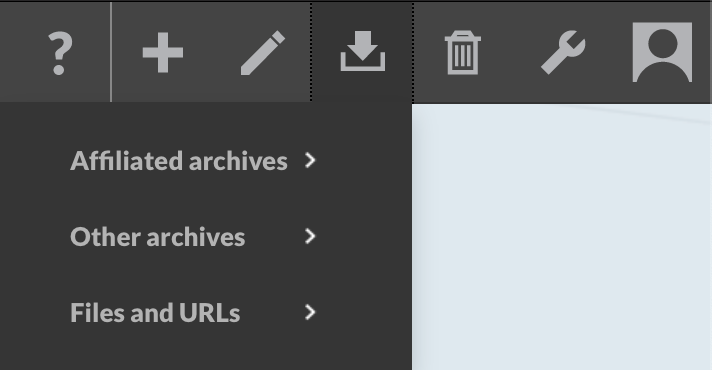
You should now be able to view, link, annotate, and embed your ArcGIS scene like any other Scalar media.
This page has paths:
12014-10-01T16:38:34-07:00Erik Loyerf862727c4b34febd6a0341bffd27f168a35aa637Working with MediaErik Loyer9How to get the most out of your use of media in Scalar.plain2025-02-25T08:44:35-08:00Erik Loyerf862727c4b34febd6a0341bffd27f168a35aa637
This page references:
12014-10-02T11:00:48-07:00Media Import Menu5Import Menu for Mediamedia/import_menu.jpgplain2015-05-29T15:08:42-07:00