Scalar's 'additional metadata' features have been disabled on this install. Learn more.
Scalar 2 User's GuideMain MenuGetting StartedExplains account and book creation, and some interface basics.QuickStartsA path of all QuickStart content in this user's guide.Working with MediaHow to get the most out of your use of media in Scalar.Working with ContentCreating and editing content in Scalar.Working with WidgetsWorking with StructureHow to use Scalar's many options for structuring publications.Editorial WorkflowHow to use features for performing editorial review of content.VisualizationsExploring the contents of a book visually.LensesAn introduction to lenses, a tool for searching and visualizing Scalar content.Advanced TopicsDescribing Scalar's more advanced features.Third Party Plugins and Platforms
Google Map Layout
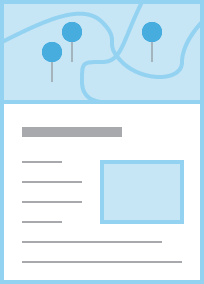
12016-10-09T12:24:01-07:00Curtis Fletcher3225f3b99ebb95ebd811595627293f68f680673e32961plain2016-10-09T12:24:01-07:00Curtis Fletcher3225f3b99ebb95ebd811595627293f68f680673eThe Google Map layout plots the current page plus any content it contains or tags on a Google Map embedded at the top of the page. Every piece of content to be plotted must include dcterms:coverage or dcterms:spatial (either will work) metadata in the format decimal latitude,decimal longitude (which can be added using the 'Metadata' tab above). Each pin shown on the map will reveal the title, description, and link for its content when clicked. The rest of the page follows the Basic layout, with text and media interspersed.
This page has paths:
12014-10-01T16:38:34-07:00Erik Loyerf862727c4b34febd6a0341bffd27f168a35aa637Selecting a Page's Default LayoutCurtis Fletcher59Determining the default appearance of a page.plain2016-10-09T12:47:36-07:00Curtis Fletcher3225f3b99ebb95ebd811595627293f68f680673e