New Ways to Navigate in Scalar 2.0
See where you are in the book
2) global visualization options
3) More robust index – in own box instead of sidebar
New Header Navigation
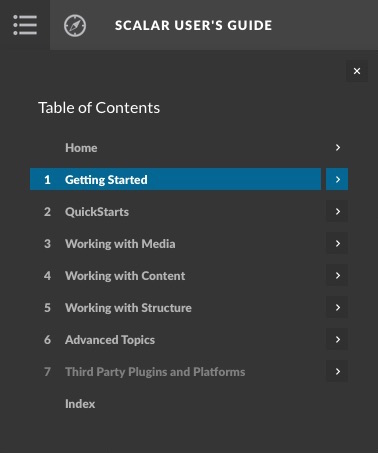
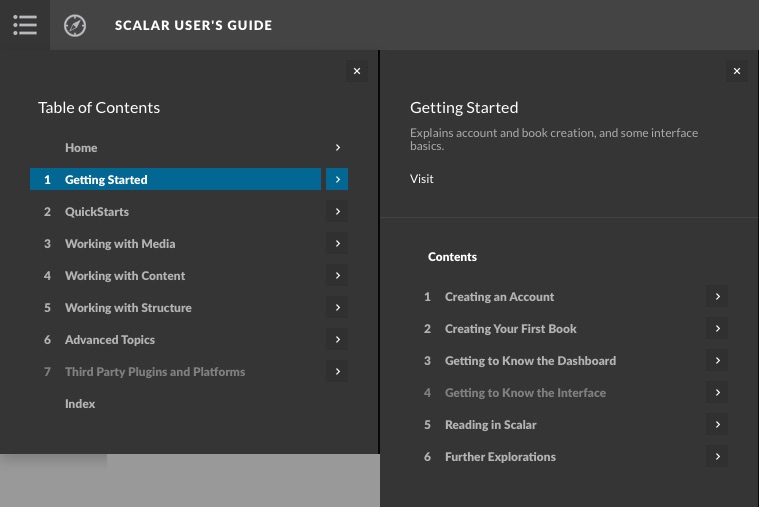
The new interface allows readers to explore the overall contents of a book without ever leaving the page! Unlike the old interface where the main menu is comprised of standard hyperlinks, in Scalar 2.0, the header incorporates an interactive menu allowing users to reveal the contents of top-level paths and any existing sub-paths. At the top-left of the header bar, you'll find a series of navigation icons. Rolling over the menu icon  reveals the book's main menu, which, like the old interface, acts as a kind of table of contents for the book (and, just as with Scalar 1.0, authors must add content to this main menu for it to appear). Clicking on the title of a page within the main menu will navigate the reader to that page. Additionally, clicking on the arrow
  just to the right of a page title will reveal the information tab for that page. If a page in the menu is also a path, its information tab will contain a submenu listing the pages in that path. Thus, by revealing the paths contained within main menu items, and (if they exist) sub-paths within those paths, the main menu gives readers an interactive, global view of a book's path structure.
New Visualization Options
The new interface also comes equipped with a more nuanced and user-defined set of global Visualizations. Easily accessible via the new header, readers now need only roll over the compass icon
 and then choose their desired visualization format. Once there, readers can limit, or otherwise define, which sets of objects and relationships within the Scalar book as a whole they’d like to see and in what graphical format. More specifically, readers can choose the "Format" for the visualization, that is, how the connections between content is visualized (choices include: Grid, Tree, Radial and Force-directed); the type of content to be visualized (choices include: All content, Table of contents, All pages, All paths, All tags, All annotations, All media, All comments, or Current page); and the type of connections or relationships to be visualized (choices include: All relationships, Parents and children or No relationships).
A More Robust Index
Finally, Rolling over the menu icon in the Scalar header will reveal the Index  icon, located just below the main table of contents. The index contains a hyperlinked catalog of all content in the current book. The content is divided up, for the reader's convenience, into tabbed categories (Paths, Pages, Media, Tags, Annotations and Comments).
This page has paths:
- Scalar 2.0: What's New? Curtis Fletcher