Scalar's 'additional metadata' features have been disabled on this install. Learn more.
Scalar 2 User's GuideMain MenuGetting StartedExplains account and book creation, and some interface basics.QuickStartsA path of all QuickStart content in this user's guide.Working with MediaHow to get the most out of your use of media in Scalar.Working with ContentCreating and editing content in Scalar.Working with WidgetsWorking with StructureHow to use Scalar's many options for structuring publications.Editorial WorkflowHow to use features for performing editorial review of content.VisualizationsExploring the contents of a book visually.LensesAn introduction to lenses, a tool for searching and visualizing Scalar content.Advanced TopicsDescribing Scalar's more advanced features.Third Party Plugins and Platforms
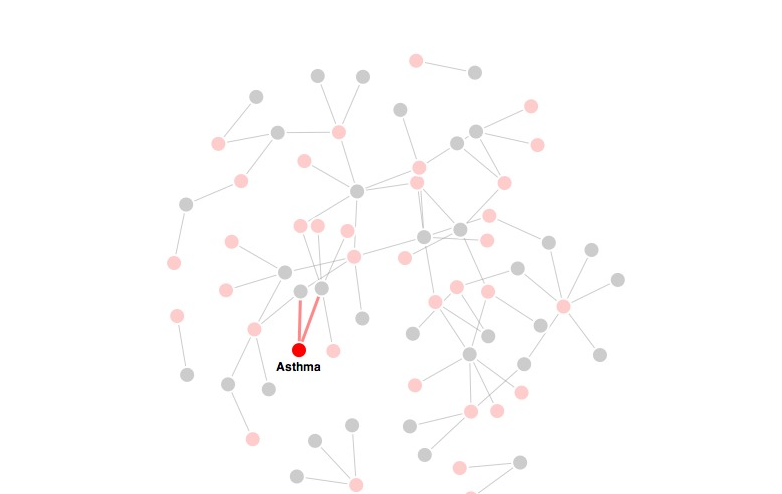
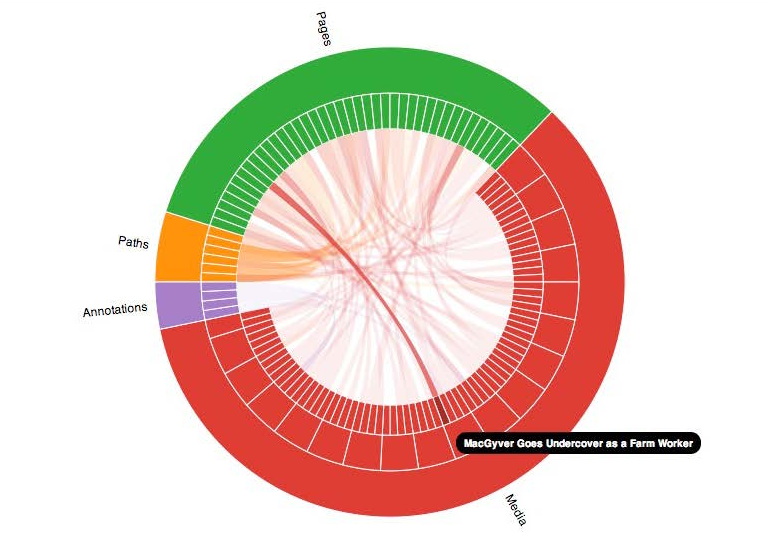
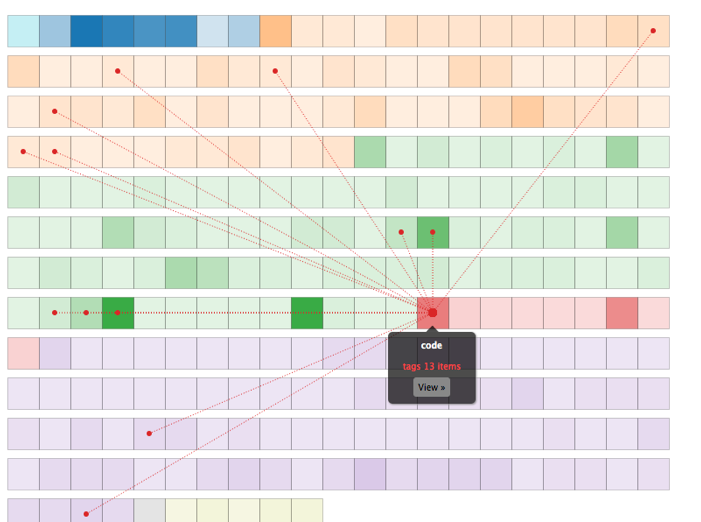
Tag visualization view
12014-10-01T16:38:33-07:00Erik Loyerf862727c4b34febd6a0341bffd27f168a35aa63732961A screenshot of Scalar's tag visualization.plain2014-10-01T16:38:33-07:00Erik Loyerf862727c4b34febd6a0341bffd27f168a35aa637
This page is referenced by:
12014-10-01T16:38:34-07:00Tag Visualization2A book's tags, rendered as a force-directed diagram.plain2015-05-28T14:39:56-07:00
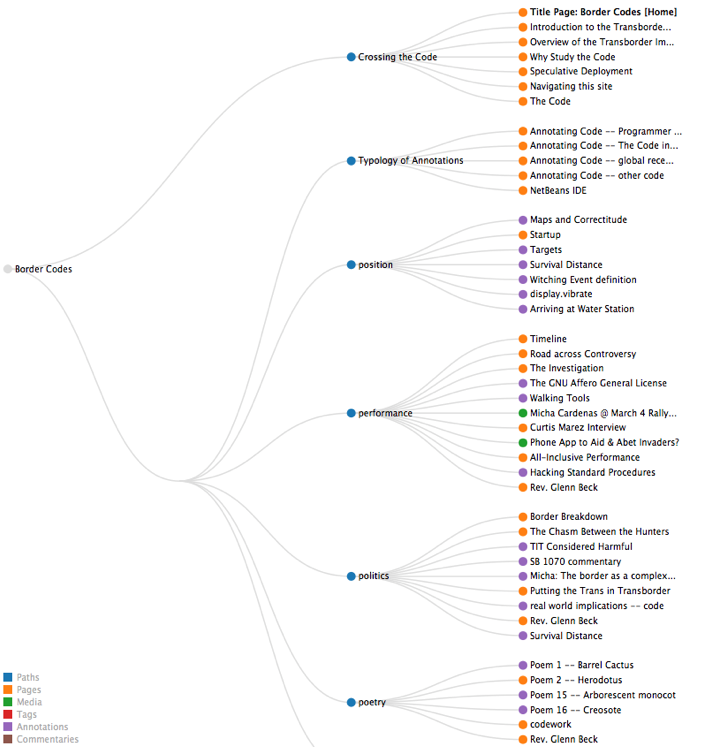
The tag visualization displays the book's tags in a force-directed graph, along with the content they tag. For performance reasons, only selected tags and their relationships are shown; to show all tags, all items must be deselected. Individual items can be selected and deselected by clicking. Double-clicking a title opens the associated content (page or media file).
12014-10-01T16:38:34-07:00Selecting a Page's Default View1Determining the default appearance of a page.text2014-10-01T16:38:34-07:00
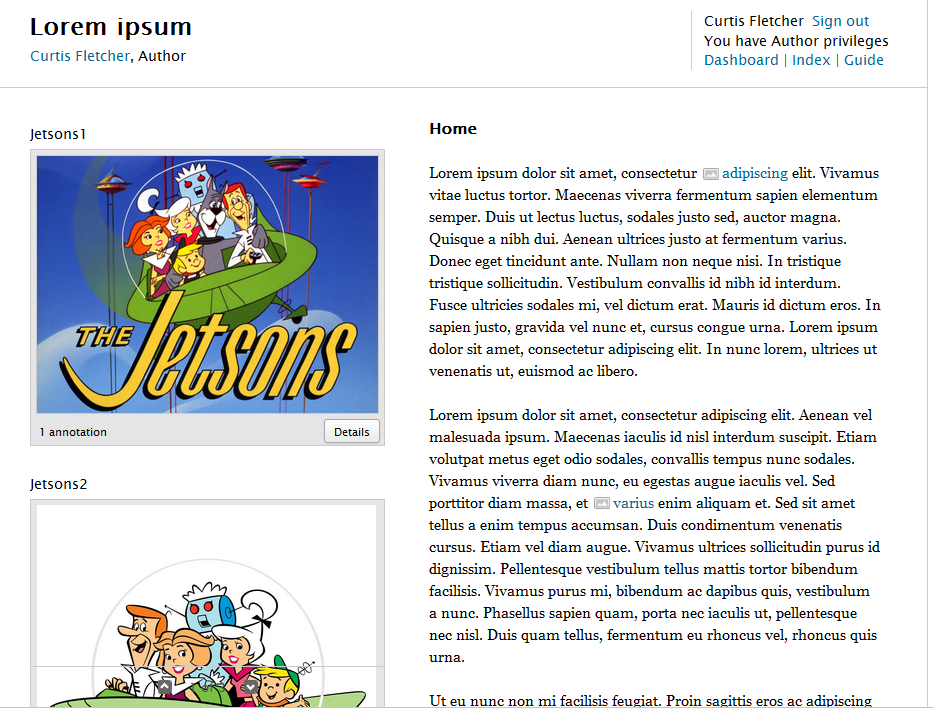
This section describes functionality in Scalar's page editor, which is accessed by clicking the "New" button (if creating new content) or the "Edit" button (if editing existing content) at the bottom of the page.
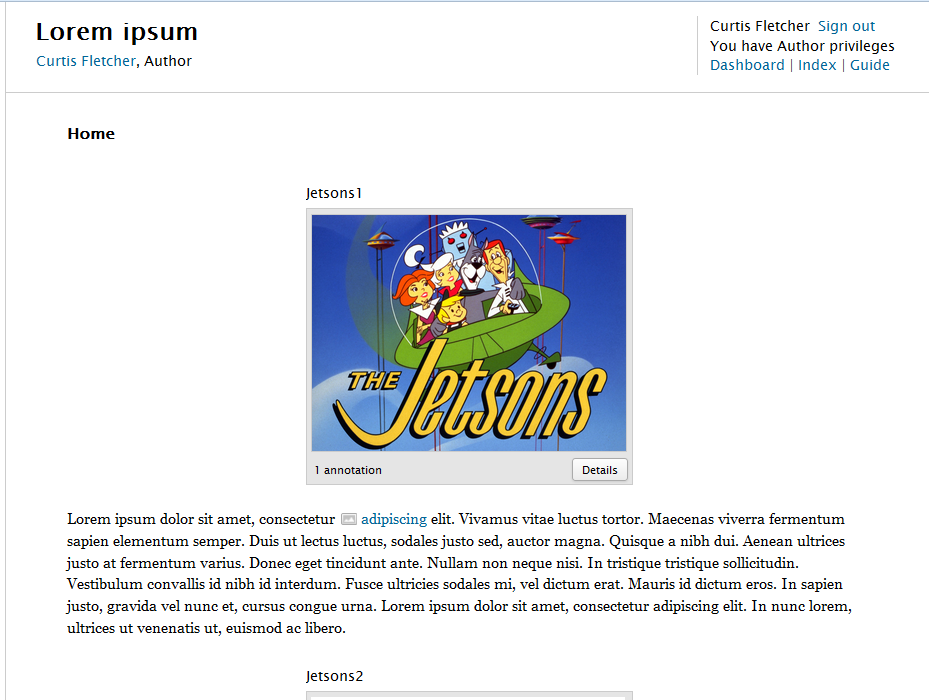
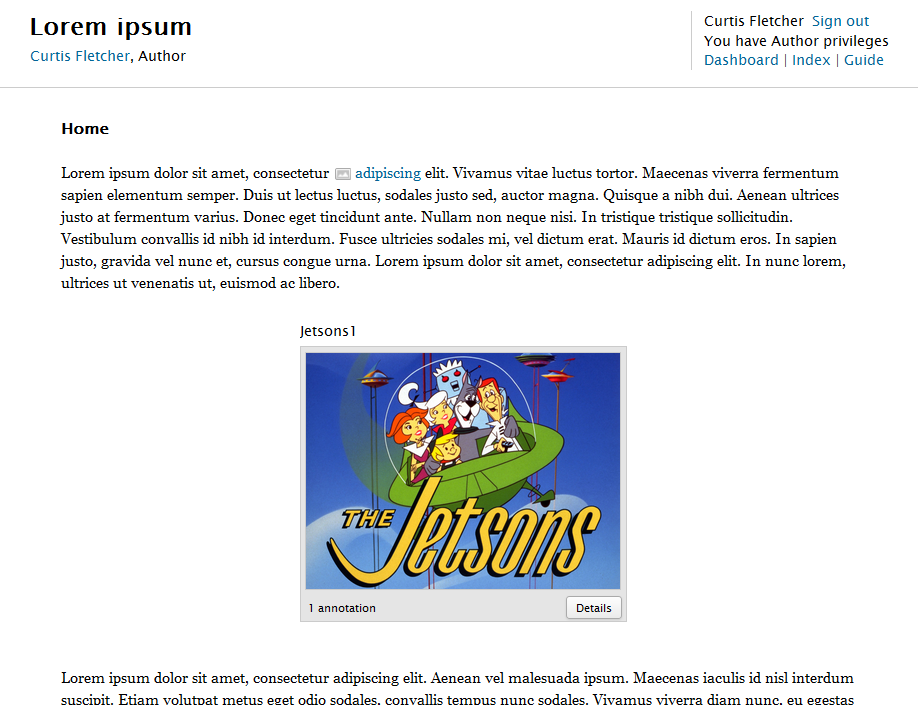
Immediately below the text editor is a drop-down menu for selecting the default view for the page. Any given page in Scalar can be rendered in a variety of ways; these are called views. Every page has a default view that determines what the user sees when they first arrive at the page. The most commonly used views can be thought of as layout templates; they govern the relationship between text and media. Other views try to visualize the relationship of the current page to other pages in the book, and still others are purely utilitarian. Let's explore each of the default view options in turn.
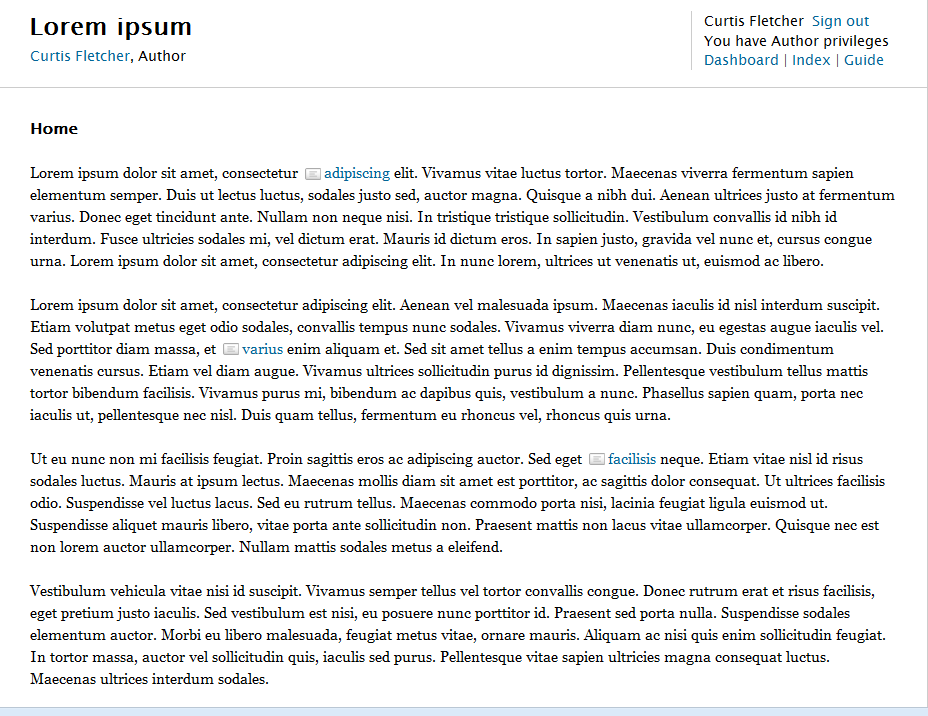
Single column. Displays only the text of the page in a single column; all Scalar media links are ignored.