Annotating Images
To annotate an image, you must be logged in with Author privileges for the Scalar book containing the image. Navigate to the image in Scalar, and click the "Edit annotations" button at the bottom of the page. This will launch the annotation editor. Once in the editor:
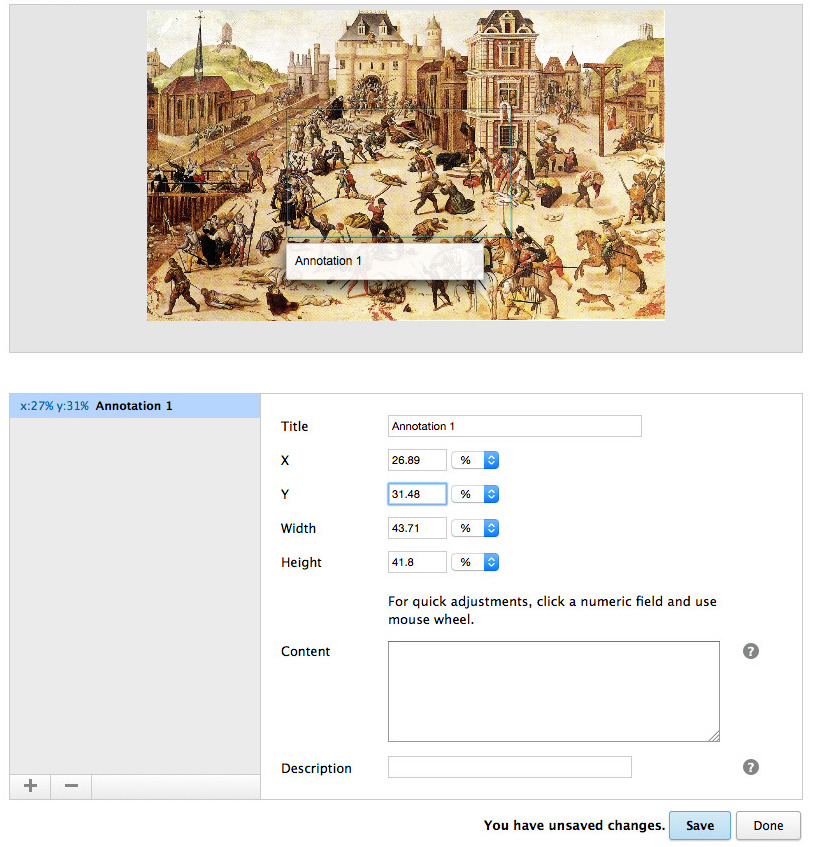
- Click the plus button on the left to create a new annotation.
- Enter the title of the annotation.
- Enter the position (X,Y) and dimensions (W,H) of the annotation. The point (0,0) is the top-left corner of the image, and units can be in pixels or percentages.
- Enter the content of the annotation (optional).
- Enter an abstract for the annotation (optional). Whatever is entered here will be displayed alongside the media instead of the content above, which will be "saved" for when the reader navigates to the annotation's dedicated page.
- Click "Save" to save the annotation.
Additionally, you can click any annotation in the annotation list on the left to select it. Selected annotations can be edited using the provided form, or deleted by clicking the minus button. When you're done editing annotations for the file, click "Done" to return to the page for the media file.
This page has paths:
- Annotating Media Curtis Fletcher