Thanks for your patience during our recent outage at scalar.usc.edu. While Scalar content is loading normally now, saving is still slow, and Scalar's 'additional metadata' features have been disabled, which may interfere with features like timelines and maps that depend on metadata. This also means that saving a page or media item will remove its additional metadata. If this occurs, you can use the 'All versions' link at the bottom of the page to restore the earlier version. We are continuing to troubleshoot, and will provide further updates as needed. Note that this only affects Scalar projects at scalar.usc.edu, and not those hosted elsewhere.
Scalar 2 User's GuideMain MenuGetting StartedExplains account and book creation, and some interface basics.QuickStartsA path of all QuickStart content in this user's guide.Working with MediaHow to get the most out of your use of media in Scalar.Working with ContentCreating and editing content in Scalar.Working with WidgetsWorking with StructureHow to use Scalar's many options for structuring publications.Editorial WorkflowHow to use features for performing editorial review of content.VisualizationsExploring the contents of a book visually.LensesAn introduction to lenses, a tool for searching and visualizing Scalar content.Advanced TopicsDescribing Scalar's more advanced features.Third Party Plugins and Platforms
Additional Page Layouts
12015-08-07T21:09:46-07:00Curtis Fletcher3225f3b99ebb95ebd811595627293f68f680673e329622Scalar 2.0: What's Newplain2015-08-10T19:03:11-07:00Erik Loyerf862727c4b34febd6a0341bffd27f168a35aa637In an effort to create a more stylish user experience, to expand navigation options, and, in general, to build upon current scholarly uses of the platform, we’ve added a number of new layout options.
We’ve also removed layout options that were central to the functionality of Scalar 1.0. In Scalar 1.0 authors had a choice between pages containing text only (the “Single column” layout), various “Media views” ("Text emphasis," "Split emphasis," "Media emphasis," and "Media per paragraph"), layouts that incorporated visualizations and history and metadata layouts. While visualization layouts remain in the new interface, "media views” have been eliminated. In their place we now allow authors to make more granular choices regarding the size, placement and description of individual media objects on a page (see the prior section, New Focus on Media). Finally, we've added a number of new layout options. Some of those include:
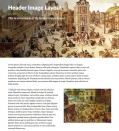
Image Header Layout
In the Image Header layout, the page's "key" image is shown as a header, with the title and description of the page overlaid. The rest of the page follows the Basic layout, with text and media interspersed.
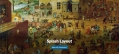
Splash Layout
In the Splash layout, the page's "key" image is shown full screen, with the page's title at the bottom. If the page is part of a path or is itself a path, a navigation button is shown as well.
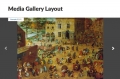
Media Gallery Layout
In the Media Gallery layout, media contained or tagged by the page are embedded at full width into a vertically scrolling gallery.
Structured Media Gallery Layout
In the Structured Media Gallery layout, media contained, tagged, orlinked up to two levels deep are grouped into titled galleries of thumbnails which reveal the media in a larger view when clicked.
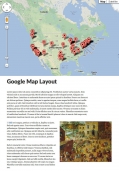
Google Map Layout
The Google Map layout plots the current page plus any content it contains or tags on a Google Map embedded at the top of the page. Every piece of content to be plotted must include dcterms:spatial metadata (added using the 'Metadata' section below) in the format decimal latitude,decimal longitude. Each pin shown on the map will reveal the title, description, and link for its content when clicked. The rest of the page follows the Basic layout, with text and media interspersed.