Thanks for your patience during our recent outage at scalar.usc.edu. While Scalar content is loading normally now, saving is still slow, and Scalar's 'additional metadata' features have been disabled, which may interfere with features like timelines and maps that depend on metadata. This also means that saving a page or media item will remove its additional metadata. If this occurs, you can use the 'All versions' link at the bottom of the page to restore the earlier version. We are continuing to troubleshoot, and will provide further updates as needed. Note that this only affects Scalar projects at scalar.usc.edu, and not those hosted elsewhere.
Scalar 2 User's GuideMain MenuGetting StartedExplains account and book creation, and some interface basics.QuickStartsA path of all QuickStart content in this user's guide.Working with MediaHow to get the most out of your use of media in Scalar.Working with ContentCreating and editing content in Scalar.Working with WidgetsWorking with StructureHow to use Scalar's many options for structuring publications.Editorial WorkflowHow to use features for performing editorial review of content.VisualizationsExploring the contents of a book visually.LensesAn introduction to lenses, a tool for searching and visualizing Scalar content.Advanced TopicsDescribing Scalar's more advanced features.Third Party Plugins and Platforms
New Ways to Navigate
12015-08-07T21:15:18-07:00Curtis Fletcher3225f3b99ebb95ebd811595627293f68f680673e329625Scalar 2.0: What's Newplain2015-08-09T00:26:36-07:00Curtis Fletcher3225f3b99ebb95ebd811595627293f68f680673eScalar books are often comprised of complex structures, part of the affordances of digital writing. Indeed, some Scalar projects are, in essence, multiple configurations, existing as both a series of paths and an interconnected network of tags. Scalar 2.0 was thus designed with superior navigation and wayfinding in mind: one of the principal aims was to provide readers with the means to better orient themselves within these structures. To this end, Scalar 2.0 includes a series of new and upgraded navigation systems all accessed via the new Scalar header.
New Header Navigation
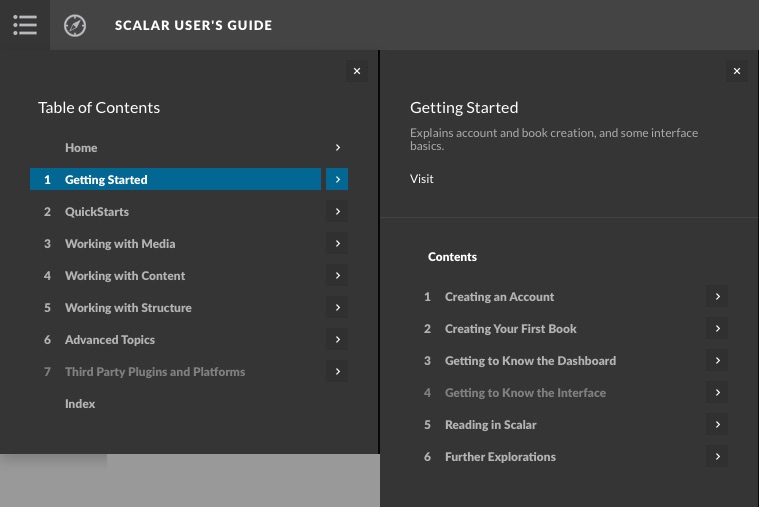
The new interface allows readers to explore the overall contents of a book without ever leaving the page! Unlike the old interface where the main menu is comprised of standard hyperlinks, in Scalar 2.0, the header incorporates an interactive menu allowing users to reveal the contents of top-level paths and any existing sub-paths. At the top-left of the header bar, you'll find a series of navigation icons. Rolling over the menu icon reveals the book's main menu, which, like the old interface, acts as a kind of table of contents for the book (and, just as with Scalar 1.0, authors must add content to this main menu for it to appear). Clicking on the title of a page within the main menu will navigate the reader to that page. Additionally, clicking on the arrow just to the right of a page title will reveal the information tab for that page. If a page in the menu is also a path, its information tab will contain a submenu listing the pages in that path. Thus, by revealing the paths contained within main menu items, and (if they exist) sub-paths within those paths, the main menu gives readers an interactive, global view of a book's path structure.
New Visualization Options
The new interface also comes equipped with a more nuanced and user-defined set of global Visualizations. Easily accessible via the new header, readers now need only roll over the compass icon and then choose their desired visualization format. Once there, readers can limit, or otherwise define, which sets of objects and relationships within the Scalar book as a whole they’d like to see and in what graphical format. More specifically, readers can choose the "Format" for the visualization, that is, how the connections between content is visualized (choices include: Grid, Tree, Radial and Force-directed); the type of content to be visualized (choices include: All content, Table of contents, All pages, All paths, All tags, All annotations, All media, All comments, or Current page); and the type of connections or relationships to be visualized (choices include: All relationships, Parents and children or No relationships).
A More Robust Index
Finally the new interface includes a much more manageable and accessible book index. Once again accessible from the main header, users will find the index icon just below the main table of contents. The new index contains a hyperlinked catalog of all content in the current book. The content is divided up, for the reader's convenience, into tabbed categories (Paths, Pages, Media, Tags, Annotations and Comments).
12015-05-23T14:51:25-07:00Scalar Main Menu1media/main_menu_toc.jpgplain2015-05-23T14:51:25-07:00
12015-05-26T11:49:00-07:00Scalar Global Visualization1Global Visualization Accessed in Scalar Headermedia/global_visualization.pngplain2015-05-26T11:49:01-07:00
12015-05-26T12:09:29-07:00Scalar Index1Main Index Accessed Via Scalar Headermedia/scalar_index.jpgplain2015-05-26T12:09:29-07:00
 reveals the book's main menu, which, like the old interface, acts as a kind of table of contents for the book (and, just as with Scalar 1.0, authors must add content to this main menu for it to appear). Clicking on the title of a page within the main menu will navigate the reader to that page. Additionally, clicking on the arrow
  just to the right of a page title will reveal the information tab for that page. If a page in the menu is also a path, its information tab will contain a submenu listing the pages in that path. Thus, by revealing the paths contained within main menu items, and (if they exist) sub-paths within those paths, the main menu gives readers an interactive, global view of a book's path structure.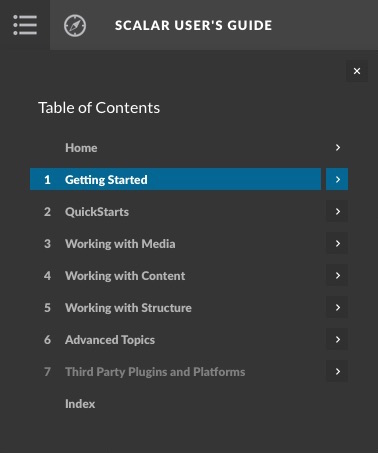
 and then choose their desired visualization format. Once there, readers can limit, or otherwise define, which sets of objects and relationships within the Scalar book as a whole they’d like to see and in what graphical format. More specifically, readers can choose the "Format" for the visualization, that is, how the connections between content is visualized (choices include: Grid, Tree, Radial and Force-directed); the type of content to be visualized (choices include: All content, Table of contents, All pages, All paths, All tags, All annotations, All media, All comments, or Current page); and the type of connections or relationships to be visualized (choices include: All relationships, Parents and children or No relationships).
 icon just below the main table of contents. The new index contains a hyperlinked catalog of all content in the current book. The content is divided up, for the reader's convenience, into tabbed categories (Paths, Pages, Media, Tags, Annotations and Comments).