Getting to Know the Interface
Framing the top of every page is Scalar's header bar which gives you access to utilities for navigating and editing (if you’re logged in and have editing privileges). If the header bar is currently hidden, scroll towards the top of the page to make it appear.

Toolbar
At the top right of the header bar, you'll see a suite of utilities for editing pages and media. These utilities include the following:

 Search. Allows you to search for content contained in the current Scalar.
  Help. Brings up the Scalar help menu.
  New. Create a new page.
  Edit. Edit the current page.
  Import. Reveals a dropdown menu allowing you to import/upload media.
  Delete. Delete the current page.
  Dashboard. Brings you to the Scalar dashboard.
  User Account. Reveals a dropdown menu allowing you to sign in/out and access the "My account" tab in the Scalar dashboard.
In addition, if you're on a media page the annotation icon  will appear in the toolbar as well, just after the edit icon.
Navigation
On the left-hand side of the header bar, you'll see a series of navigation icons. The menu icon  reveals the main menu items for the current book. The compass icon
  reveals a set of additional options: recent items viewed in the current book; global visualizations for the current book; and links to information about Scalar and the main Scalar index page.
The main menu acts as a kind of table of contents for Scalar books. It contains items added by the author in the dashboard.
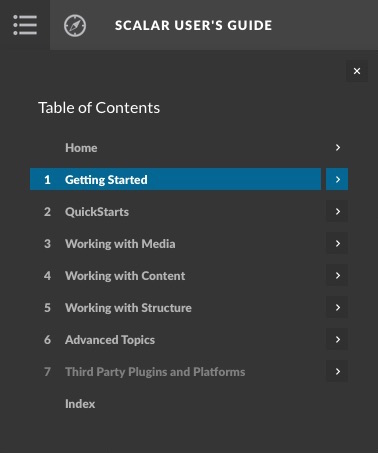
Rolling over the menu icon will reveal the items added to the
Clicking on a page title will take you to that page. Clicking on the arrow X to the right of a page title will reveal information about that page. If the page is also a path, clicking on the arrow to the right of the page will reveal a submenu containing the pages in that path.
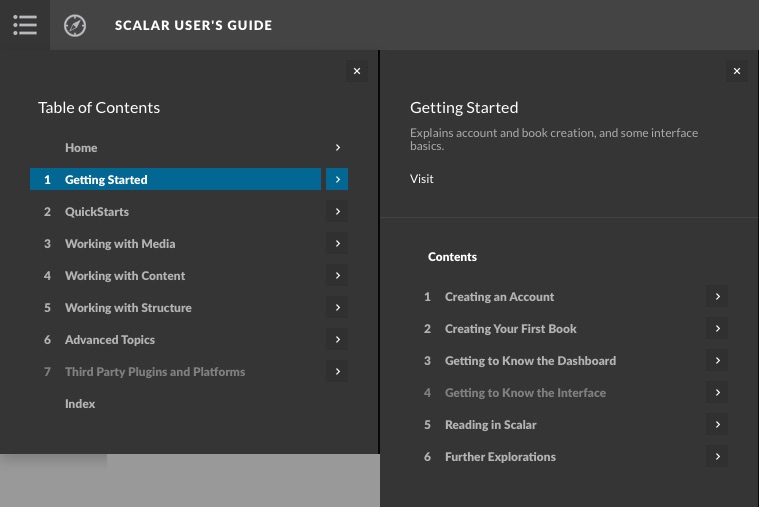
Footer
The footer provides a variety of utility links related to the page, the book, and Scalar itself, along with social sharing options.
This page has paths:
- Getting Started Curtis Fletcher