Getting to Know the Interface
Surrounding the main content on a Scalar page are some useful interface elements that will help you make the most of a Scalar book's content and features.
Header
In addition to displaying the book's title and author(s), the header includes a link in the top-right corner to sign in to your account. If you're already signed in to a book you have privileges to edit, you'll also see a "Dashboard" link. Following that link opens the Dashboard for your book, where you can do high-level tasks like changing the name of your book, adding and removing users, changing privacy settings, and quickly editing multiple pieces of content. The "Index" link will return you to the index of public Scalar books.
Navigation
On the left side of the page is Scalar's navigation interface. At its top is a link back to the "Home" page of the book, and below that is a drop-down menu that lets you change the options and information that are shown. These options include:
- Main menu. This is the default mode of the navigation, and is a kind of "Table of Contents" of key pages in the book. (To learn how to add items to the Main Menu for your own book, visit the Dashboard section).
- Current page. This mode displays information about the current page, including its name and relationships to other content in the book. This mode is useful if you want to quickly navigate to items linked from your current location. If you have editing privileges in the book, it also includes the New, Edit, and Trash buttons.
- About. Here can be found useful meta-content about the book, including Acknowledgements, Works Cited, and About the Author pages. These links are generated automatically, but need to be populated with content by the book's author.
- Explore. This mode includes links to visualizations of the book's content, a tag cloud, and this User's Guide.
- Import. (Authors only) From here, you can import media references into your Scalar book from a variety of sources, including affiliated archives, popular web services, local and internet-hosted media files. For more about importing media, visit the Working with Media section.
- Index. An index of all content in the book, sorted first by type and then alphabetically by title. The Index Visualization is an alternate way to see all of the content in a book.
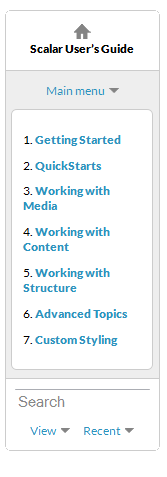
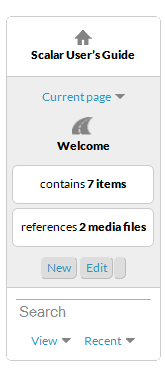
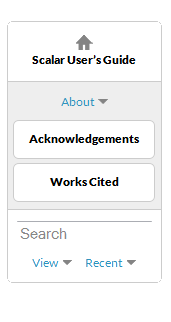
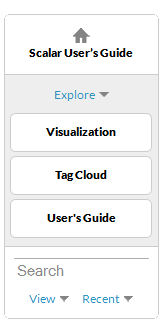


At the bottom of the navigation interface is a search field for finding content in the current book, along with a View menu for rendering the content of the current page in different ways, and a Recent menu which contains a history of navigation in the current book, filterable by content type.
Footer
The footer provides a variety of utility links related to the page, the book, and Scalar itself, along with social sharing options.
This page has paths:
- Getting Started Curtis Fletcher