Thanks for your patience during our recent outage at scalar.usc.edu. While Scalar content is loading normally now, saving is still slow, and Scalar's 'additional metadata' features have been disabled, which may interfere with features like timelines and maps that depend on metadata. This also means that saving a page or media item will remove its additional metadata. If this occurs, you can use the 'All versions' link at the bottom of the page to restore the earlier version. We are continuing to troubleshoot, and will provide further updates as needed. Note that this only affects Scalar projects at scalar.usc.edu, and not those hosted elsewhere.
Scalar 2 User's Guide
Main Menu
Getting Started
Explains account and book creation, and some interface basics.
QuickStarts
A path of all QuickStart content in this user's guide.
Working with Media
How to get the most out of your use of media in Scalar.
Working with Content
Creating and editing content in Scalar.
Working with Widgets
Working with Structure
How to use Scalar's many options for structuring publications.
Editorial Workflow
How to use features for performing editorial review of content.
Visualizations
Exploring the contents of a book visually.
Lenses
An introduction to lenses, a tool for searching and visualizing Scalar content.
Advanced Topics
Describing Scalar's more advanced features.
Third Party Plugins and Platforms
Bulk importing CSV data from spreadsheets using the Transfer tool
1 2017-01-10T11:07:35-08:00 Craig Dietrich 2d66800a3e5a1eaee3a9ca2f91f391c8a6893490 3296 9 List of steps for importing spreadsheets into Scalar plain 2024-05-20T13:37:55-07:00 Erik Loyer f862727c4b34febd6a0341bffd27f168a35aa637Page
| resource | rdf:resource | https://scalar.usc.edu/works/guide2/bulk-importing-spreadsheets-using-the-transfer-tool |
| type | rdf:type | http://scalar.usc.edu/2012/01/scalar-ns#Composite |
| is live | scalar:isLive | 1 |
| custom style | scalar:customStyle | ol {padding-left:20px;} |
| was attributed to | prov:wasAttributedTo | https://scalar.usc.edu/works/guide2/users/378 |
| created | dcterms:created | 2017-01-10T11:07:35-08:00 |
Version 9
| resource | rdf:resource | https://scalar.usc.edu/works/guide2/bulk-importing-spreadsheets-using-the-transfer-tool.9 |
| versionnumber | ov:versionnumber | 9 |
| title | dcterms:title | Bulk importing CSV data from spreadsheets using the Transfer tool |
| description | dcterms:description | List of steps for importing spreadsheets into Scalar |
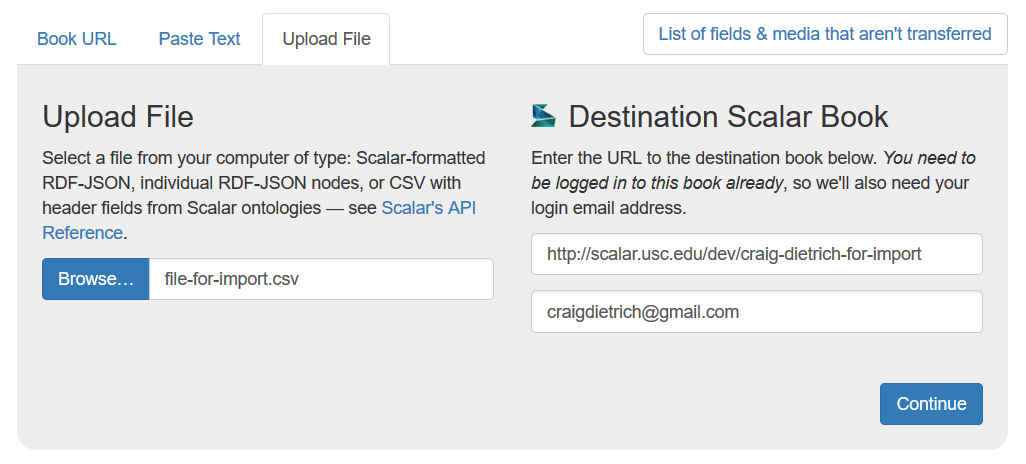
| content | sioc:content | The Transfer tool is located in the Dashboard's Import/Export tab. (The tool is a Scalar plugin and might not be present if the administrator of your Scalar install hasn't installed it separately from Scalar itself.) Its primary function is to allow for migration of Scalar books from one place to another, for example, migrating a Scalar book from one Scalar install to another. Though, it can also be used to bulk import pages and media from a spreadsheet. The steps for importing a spreadsheet are straight forward: create a spreadsheet (e.g., in Google Spreadsheets or Excel), add rows that constitute pages, make each column heading match Scalar's brand of metadata fields, then export a Comma Separated Values (CSV) document for use importing. Here are the steps in detail:
Any Dublin Core fields can be used as column headings. For example: "dcterms:title" "dcterms:description" "dcterms:source" (dcterms:title is required). In addition, you must have one of: "art:url" or "sioc:content". Scalar supports other ontology prefixes such as: "bibo:(field name)" "iptc:(field name)" "id3:(field name)". Note that if you include a "scalar:slug" column and populate it with the slugs of existing pages or media, then the importer will update those items with the new data, instead of creating new items. The "slug" is a unique identifier that consists of the last segment of a Scalar URL, usually derived from the item's title. For example, the slug for this page is "bulk-importing-spreadsheets-using-the-transfer-tool". |
| default view | scalar:defaultView | plain |
| was attributed to | prov:wasAttributedTo | https://scalar.usc.edu/works/guide2/users/379 |
| created | dcterms:created | 2024-05-20T13:37:55-07:00 |
| type | rdf:type | http://scalar.usc.edu/2012/01/scalar-ns#Version |
Version 8
| resource | rdf:resource | https://scalar.usc.edu/works/guide2/bulk-importing-spreadsheets-using-the-transfer-tool.8 |
| versionnumber | ov:versionnumber | 8 |
| title | dcterms:title | Bulk importing CSV data from spreadsheets using the Transfer tool |
| description | dcterms:description | List of steps for importing spreadsheets into Scalar |
| content | sioc:content | The Transfer tool is located in the Dashboard's Import/Export tab. (The tool is a Scalar plugin and might not be present if the administrator of your Scalar install hasn't installed it separately from Scalar itself.) Its primary function is to allow for migration of Scalar books from one place to another, for example, migrating a Scalar book from one Scalar install to another. Though, it can also be used to bulk import pages and media from a spreadsheet. The steps for importing a spreadsheet are straight forward: create a spreadsheet (e.g., in Google Spreadsheets or Excel), add rows that constitute pages, make each column heading match Scalar's brand of metadata fields, then export a Comma Separated Values (CSV) document for use importing. Here are the steps in detail:
Any Dublin Core fields can be used as column headings. For example: "dcterms:title" "dcterms:description" "dcterms:source" (dcterms:title is required). In addition, you must have one of: "art:url" or "sioc:content". Scalar supports other ontology prefixes such as: "bibo:(field name)" "iptc:(field name)" "id3:(field name)". |
| default view | scalar:defaultView | plain |
| was attributed to | prov:wasAttributedTo | https://scalar.usc.edu/works/guide2/users/379 |
| created | dcterms:created | 2019-07-24T08:57:44-07:00 |
| type | rdf:type | http://scalar.usc.edu/2012/01/scalar-ns#Version |
Version 7
| resource | rdf:resource | https://scalar.usc.edu/works/guide2/bulk-importing-spreadsheets-using-the-transfer-tool.7 |
| versionnumber | ov:versionnumber | 7 |
| title | dcterms:title | Bulk importing spreadsheets using the Transfer tool |
| description | dcterms:description | List of steps for importing spreadsheets into Scalar |
| content | sioc:content | The Transfer tool is located in the Dashboard's Import/Export tab. (The tool is a Scalar plugin and might not be present if the administrator of your Scalar install hasn't installed it separately from Scalar itself.) Its primary function is to allow for migration of Scalar books from one place to another, for example, migrating a Scalar book from one Scalar install to another. Though, it can also be used to bulk import pages and media from a spreadsheet. The steps for importing a spreadsheet are straight forward: create a spreadsheet (e.g., in Google Spreadsheets or Excel), add rows that constitute pages, make each column heading match Scalar's brand of metadata fields, then export a Comma Separated Values (CSV) document for use importing. Here are the steps in detail:
Any Dublin Core fields can be used as column headings. For example: "dcterms:title" "dcterms:description" "dcterms:source" (dcterms:title is required). In addition, you must have one of: "art:url" or "sioc:content". Scalar supports other ontology prefixes such as: "bibo:(field name)" "iptc:(field name)" "id3:(field name)". |
| default view | scalar:defaultView | plain |
| was attributed to | prov:wasAttributedTo | https://scalar.usc.edu/works/guide2/users/913 |
| created | dcterms:created | 2017-06-07T14:10:31-07:00 |
| type | rdf:type | http://scalar.usc.edu/2012/01/scalar-ns#Version |
Version 6
| resource | rdf:resource | https://scalar.usc.edu/works/guide2/bulk-importing-spreadsheets-using-the-transfer-tool.6 |
| versionnumber | ov:versionnumber | 6 |
| title | dcterms:title | Bulk importing spreadsheets using the Transfer tool |
| description | dcterms:description | List of steps for importing spreadsheets into Scalar |
| content | sioc:content | The Transfer tool is located in the Dashboard's Import/Export tab. (The tool is a Scalar plugin and might not be present if the administrator of your Scalar install hasn't installed it separately from Scalar itself.) Its primary function is to allow for migration of Scalar books from one place to another, for example, migrating a Scalar book from one Scalar install to another. Though, it can also be used to bulk import pages and media from a spreadsheet. The steps for importing a spreadsheet are straight forward: create a spreadsheet (e.g., in Google Spreadsheets or Excel), add rows that constitute pages, make each column heading match Scalar's brand of metadata fields, then export a Comma Separated Values (CSV) document for use importing. Here are the steps in detail:
Any Dublin Core fields can be used as column headings. For example: "dcterms:title" "dcterms:description" "dcterms:source" (dcterms:title is required). In addition, you must have one of: "art:url" or "sioc:content". Scalar supports other ontology prefixes such as: "bibo:(field name)" "iptc:(field name)" "id3:(field name)". |
| default view | scalar:defaultView | plain |
| was attributed to | prov:wasAttributedTo | https://scalar.usc.edu/works/guide2/users/913 |
| created | dcterms:created | 2017-05-23T16:37:09-07:00 |
| type | rdf:type | http://scalar.usc.edu/2012/01/scalar-ns#Version |
Version 5
| resource | rdf:resource | https://scalar.usc.edu/works/guide2/bulk-importing-spreadsheets-using-the-transfer-tool.5 |
| versionnumber | ov:versionnumber | 5 |
| title | dcterms:title | Bulk importing spreadsheets using the Transfer tool |
| description | dcterms:description | List of steps for importing spreadsheets into Scalar |
| content | sioc:content | The Transfer tool is located in the Dashboard's Import/Export tab. (The tool is a Scalar plugin and might not be present if the administrator of your Scalar install hasn't installed it separately from Scalar itself.) Its primary function is to allow for migration of Scalar books from one place to another, for example, migrating a Scalar book from one Scalar install to another. Though, it can also be used to bulk import pages and media from a spreadsheet. The steps for importing a spreadsheet are straight forward: create a spreadsheet (e.g., in Google Spreadsheets or Excel), add rows that constitute pages, make each column heading match Scalar's brand of metadata fields, then export a Comma Separated Values (CSV) document for use importing. Here are the steps in detail:
Any Dublin Core fields can be used as column headings. For example: "dcterms:title" "dcterms:description" "dcterms:source" (dcterms:title is required). In addition, you must have one of: "art:url" or "sioc:content". Scalar supports other ontology prefixes such as: "bibo:(field name)" "iptc:(field name)" "id3:(field name)". |
| default view | scalar:defaultView | plain |
| was attributed to | prov:wasAttributedTo | https://scalar.usc.edu/works/guide2/users/913 |
| created | dcterms:created | 2017-05-23T16:36:02-07:00 |
| type | rdf:type | http://scalar.usc.edu/2012/01/scalar-ns#Version |
Version 4
| resource | rdf:resource | https://scalar.usc.edu/works/guide2/bulk-importing-spreadsheets-using-the-transfer-tool.4 |
| versionnumber | ov:versionnumber | 4 |
| title | dcterms:title | Bulk importing spreadsheets using the Transfer tool |
| description | dcterms:description | List of steps for importing spreadsheets into Scalar |
| content | sioc:content | The Transfer tool is located in the Dashboard's Import/Export tab. (The tool is a Scalar plugin and might not be present if the administrator of your Scalar install hasn't installed it separately from Scalar itself.) Its primary function is to allow for migration of Scalar books from one place to another, for example, migrating a Scalar book from one Scalar install to another. Though, it can also be used to bulk import pages and media from a spreadsheet. The steps for importing a spreadsheet are straight forward: create a spreadsheet (e.g., in Google Spreadsheets or Excel), add rows that constitute pages, make each column heading match Scalar's brand of metadata fields, then export a Comma Separated Values (CSV) document for use importing. Here are the steps in detail:
Any Dublin Core fields can be used as column headings. For example: "dcterms:title" "dcterms:description" "dcterms:source" (dcterms:title is required). In addition, you must have one of: "art:url" or "sioc:content". Scalar supports other ontology prefixes such as: "bibo:(field name)" "iptc:(field name)" "id3:(field name)". |
| default view | scalar:defaultView | plain |
| was attributed to | prov:wasAttributedTo | https://scalar.usc.edu/works/guide2/users/913 |
| created | dcterms:created | 2017-02-21T13:44:11-08:00 |
| type | rdf:type | http://scalar.usc.edu/2012/01/scalar-ns#Version |
Version 3
| resource | rdf:resource | https://scalar.usc.edu/works/guide2/bulk-importing-spreadsheets-using-the-transfer-tool.3 |
| versionnumber | ov:versionnumber | 3 |
| title | dcterms:title | Bulk importing spreadsheets using the Transfer tool |
| description | dcterms:description | List of steps for importing spreadsheets into Scalar |
| content | sioc:content | The Transfer tool is located in the Dashboard's Import/Export tab. (The tool is a Scalar plugin and might not be present if the administrator of your Scalar install hasn't installed it separately from Scalar itself.) Its primary function is to allow for migration of Scalar books from one place to another, for example, migrating a Scalar book from one Scalar install to another. Though, it can also be used to bulk import pages and media from a spreadsheet. The steps for importing a spreadsheet are straight forward: create a spreadsheet (e.g., in Google Spreadsheets or Excel), add rows that constitute pages, make each column heading match Scalar's brand of metadata fields, then export a Comma Separated Values (CSV) document for use importing. Here are the steps in detail:
Any Dublin Core fields can be used as column headings. For example: "dcterms:title" "dcterms:description" "dcterms:source" (dcterms:title is required). In addition, you must have one of: "art:url" or "sioc:content". Scalar supports other ontology prefixes such as: "bibo:(field name)" "iptc:(field name)" "id3:(field name)". |
| default view | scalar:defaultView | plain |
| was attributed to | prov:wasAttributedTo | https://scalar.usc.edu/works/guide2/users/913 |
| created | dcterms:created | 2017-02-21T13:41:02-08:00 |
| type | rdf:type | http://scalar.usc.edu/2012/01/scalar-ns#Version |
Version 2
| resource | rdf:resource | https://scalar.usc.edu/works/guide2/bulk-importing-spreadsheets-using-the-transfer-tool.2 |
| versionnumber | ov:versionnumber | 2 |
| title | dcterms:title | Bulk importing spreadsheets using the Transfer tool |
| description | dcterms:description | List of steps for importing spreadsheets into Scalar |
| content | sioc:content | The Transfer tool is located in the Dashboard's Import/Export tab. (The tool is a Scalar plugin and might not be present if the administrator of your Scalar install hasn't installed it separately from Scalar itself.) Its primary function is to allow for migration of Scalar books from one place to another, for example, migrating a Scalar book from one Scalar install to another. Though, it can also be used to bulk import pages and media from a spreadsheet. The steps for importing a spreadsheet are straight forward: create a spreadsheet (e.g., in Google Spreadsheets or Excel), add rows that constitute pages, make each column heading match Scalar's brand of metadata fields, then export a Comma Separated Values (CSV) document for use importing. Here are the steps in detail:
Any Dublin Core fields can be used as column headings. For example: "dcterms:title" "dcterms:description" "dcterms:source" (dcterms:title is required). In addition, you must have one of: "art:url" or "sioc:content". Scalar supports other ontology prefixes such as: "bibo:(field name)" "iptc:(field name)" "id3:(field name)". |
| default view | scalar:defaultView | plain |
| was attributed to | prov:wasAttributedTo | https://scalar.usc.edu/works/guide2/users/378 |
| created | dcterms:created | 2017-02-02T18:01:15-08:00 |
| type | rdf:type | http://scalar.usc.edu/2012/01/scalar-ns#Version |
Version 1
| resource | rdf:resource | https://scalar.usc.edu/works/guide2/bulk-importing-spreadsheets-using-the-transfer-tool.1 |
| versionnumber | ov:versionnumber | 1 |
| title | dcterms:title | Bulk importing spreadsheets using the Transfer tool |
| content | sioc:content | The Transfer tool is located in the Dashboard's Import/Export tab. (The tool is a Scalar plugin and might not be present if the administrator of your Scalar install hasn't installed it separately from Scalar itself.) Its primary function is to allow for migration of Scalar books from one place to another, for example, migrating a Scalar book from one Scalar install to another. Though, it can also be used to bulk import pages and media from a spreadsheet. The steps for importing a spreadsheet are straight forward: create spreadsheet (e.g., in Google Spreadsheets or Excel), add rows that constitute pages, make each column heading match Scalar's brand of metadata fields, the export a Comma Separated Values (CSV) document for use importing. Here are the steps in detail:
|
| default view | scalar:defaultView | plain |
| was attributed to | prov:wasAttributedTo | https://scalar.usc.edu/works/guide2/users/378 |
| created | dcterms:created | 2017-01-10T11:17:35-08:00 |
| type | rdf:type | http://scalar.usc.edu/2012/01/scalar-ns#Version |