Using JavaScript
Publishing your Scalar BookPage-Specific JavaScript
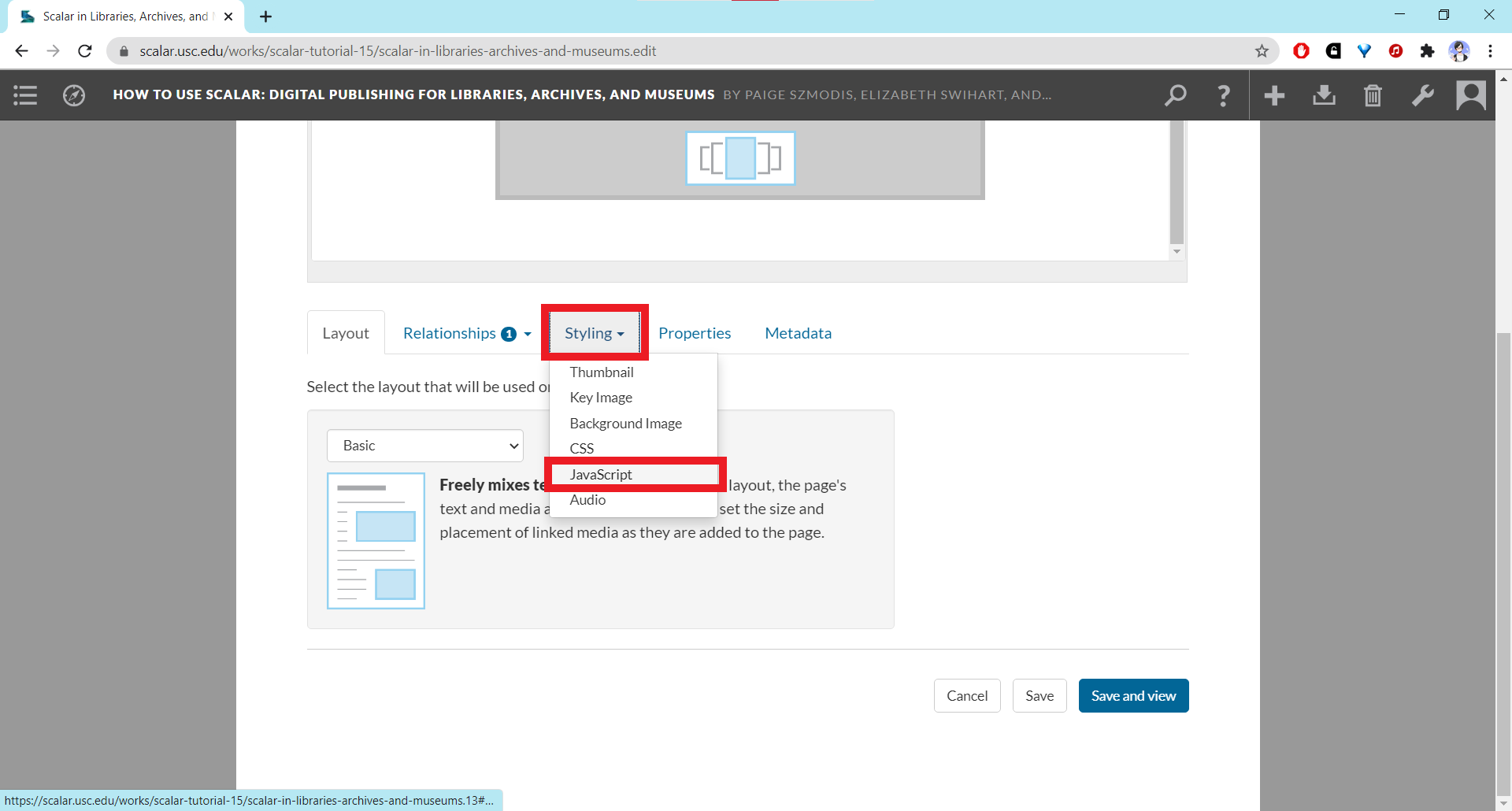
- To add JavaScript customization to a page, click the pencil icon to open the editor, go to the Styling tab in the editor page, and select the JavaScript option. This should refresh the page with a JavaScript code field.
- Type or paste any JavaScript code into the field.
- Click one of the "Save" buttons at the bottom.


JavaScript for the Entire Book
To add JavaScript that will apply to the entire book, go to the dashboard, click on the Styling tab, and scroll down to the JavaScript code input field. Follow steps 2-3 from the Page-Specific JavaScript tutorial above.Adding bylines
If you want to insert an individual byline for a particular page, you can use the code snippet provided by the Scalar 2 User's Guide:$(document).ready(function() { var author = $('header span[resource="'+location.protocol+'//'+location.host+location.pathname+'"]').next().find('[property="foaf:name"]').text(); $('h1:first').append(' by '+author+''); }); Below you can see where the byline should appear. The name displayed will be that of the user who added the page to the book.If the person who created the content of the page is different from the person who added the page, you can use the following code-snippet instead:
$(document).ready(function() { $('h1:first').append(' by FirstName LastName'); }); Substitute the person's name where it says "FirstName LastName."
For more information about using JavaScript, consult the Advanced Topics chapter of the Scalar 2 User's Guide.
This page has paths:
- Using HTML/CSS/JavaScript Shenwei Chang