Using CSS
The CSS can be customized so that the changes are reflected across the entire book, or you can customize the appearance of a particular page.
Customizing the Book
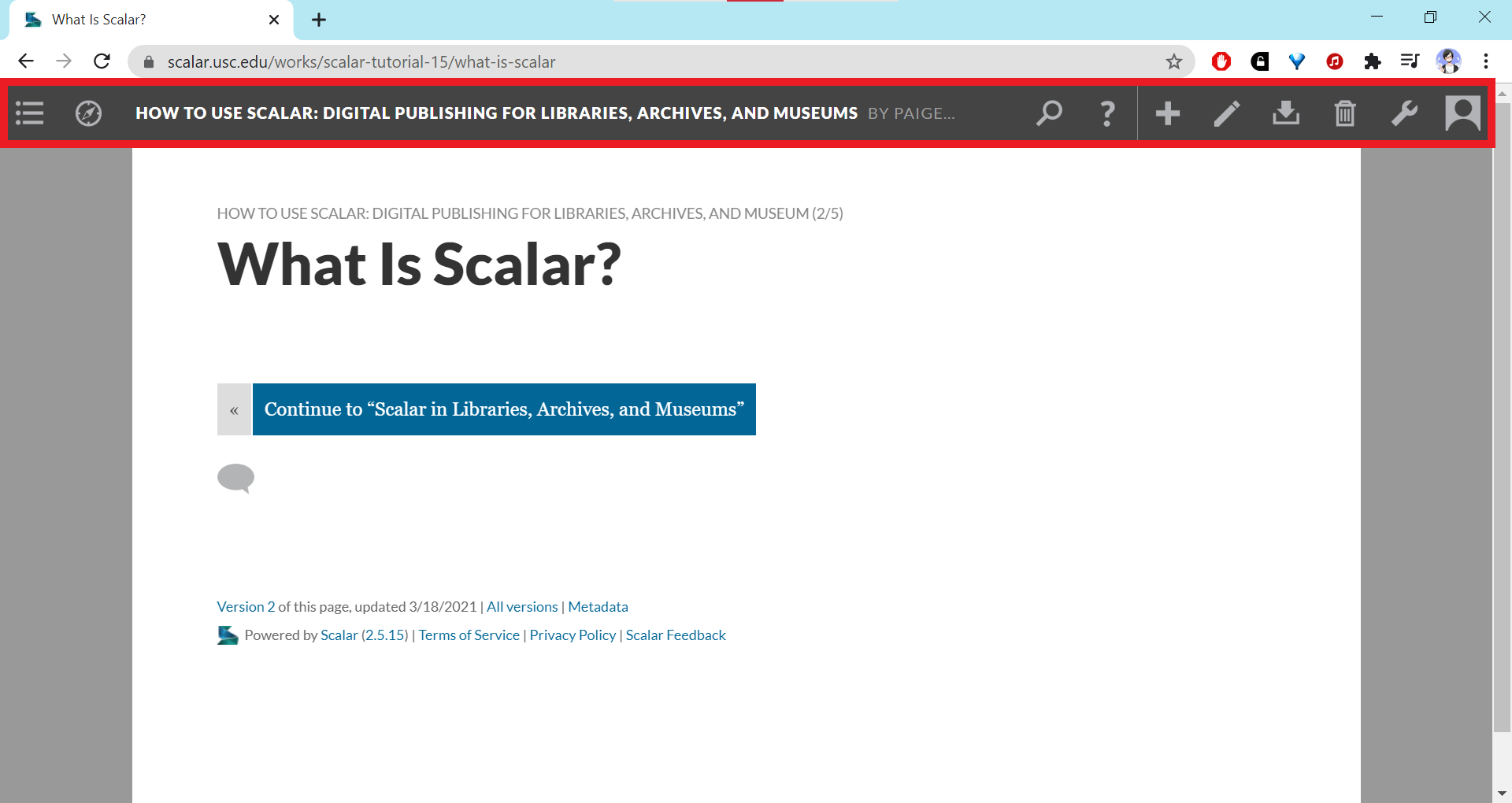
- To customize the CSS for the entire book, go to the dashboard by clicking the wrench icon.
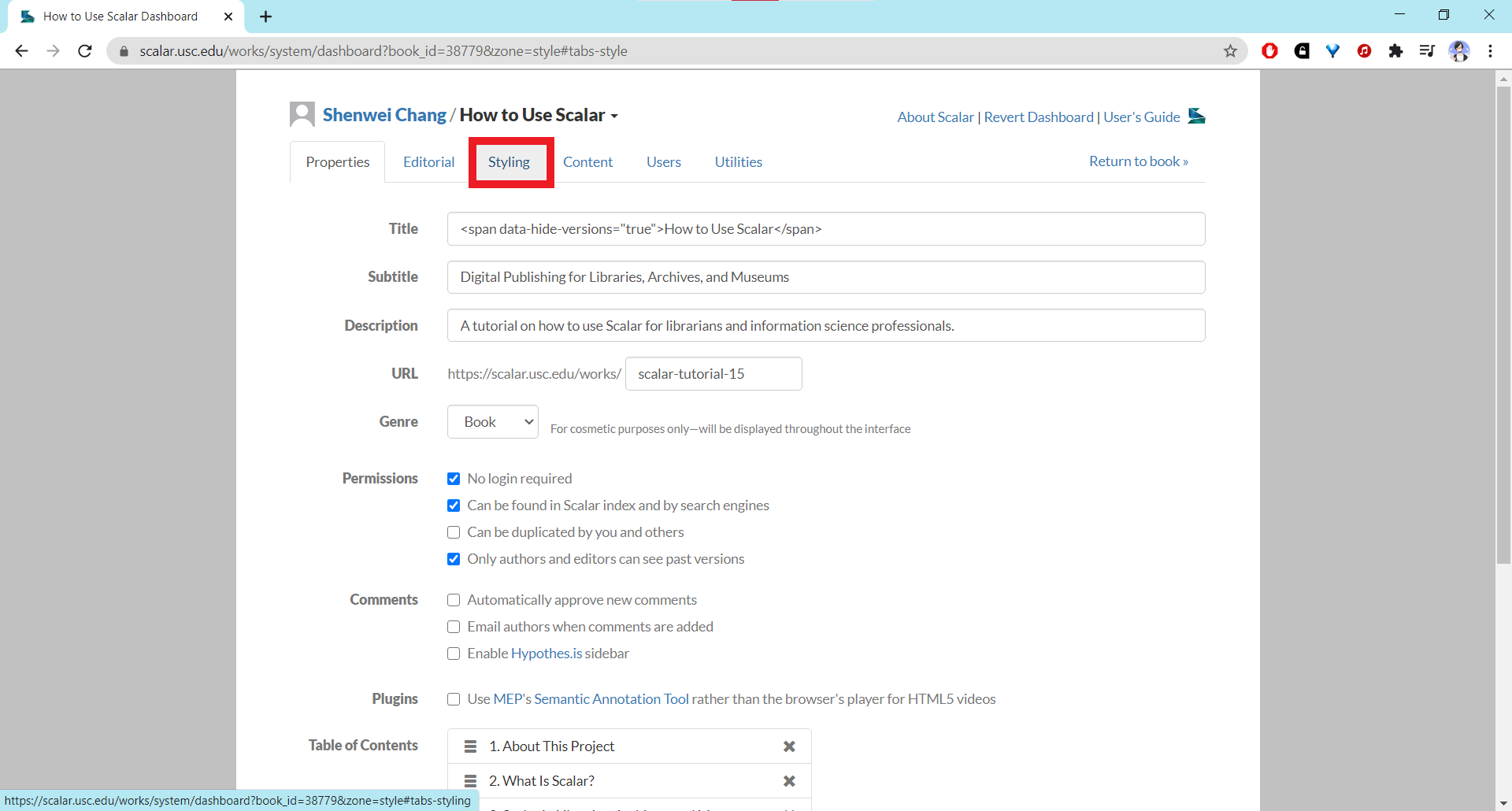
- When the dashboard loads there should be a tab labeled Styling. Click on that tab.
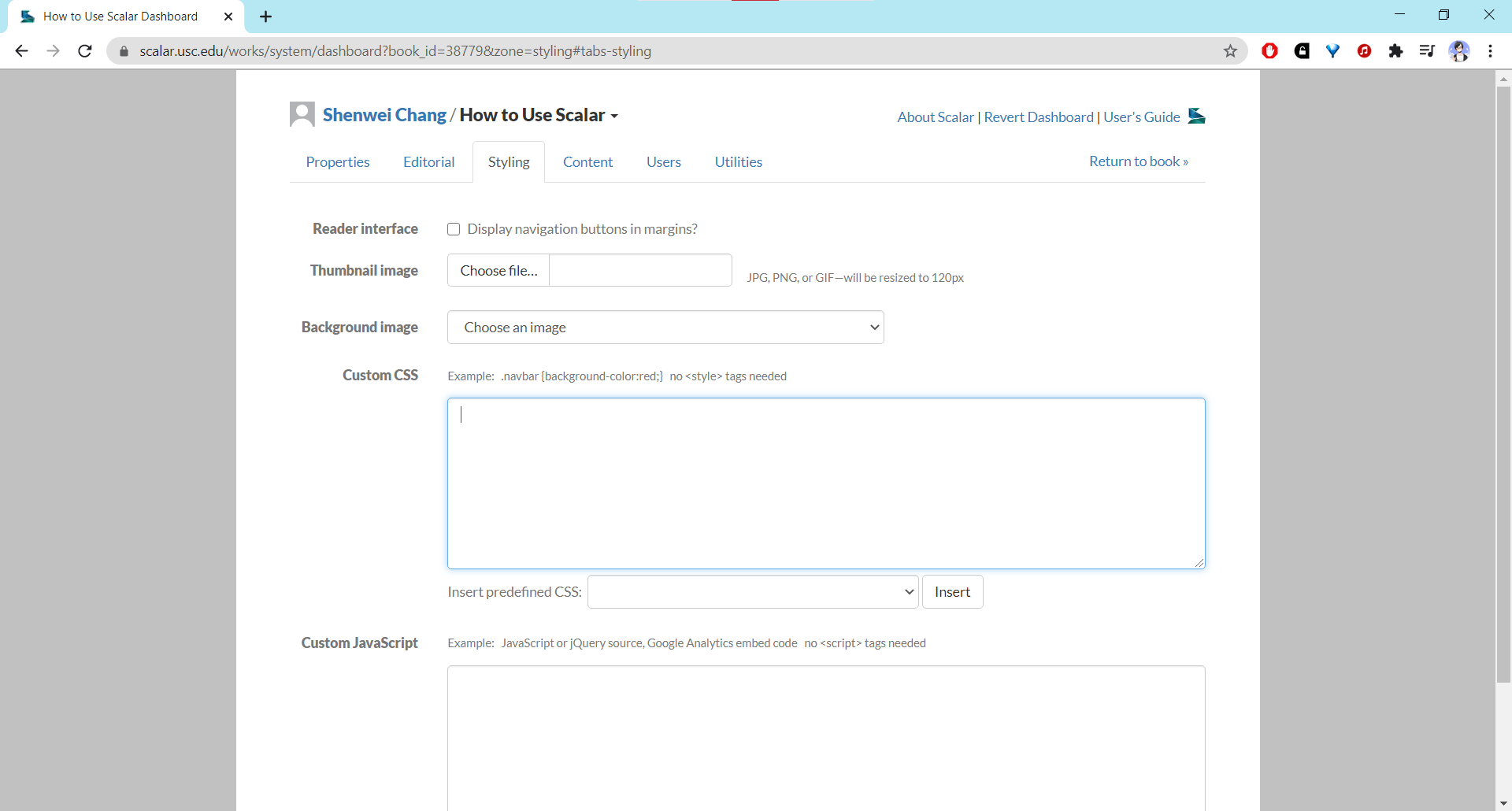
- Under the Styling tab there should be a section labeled custom CSS. You can type any CSS code directly into the input field without enclosing it in HTML
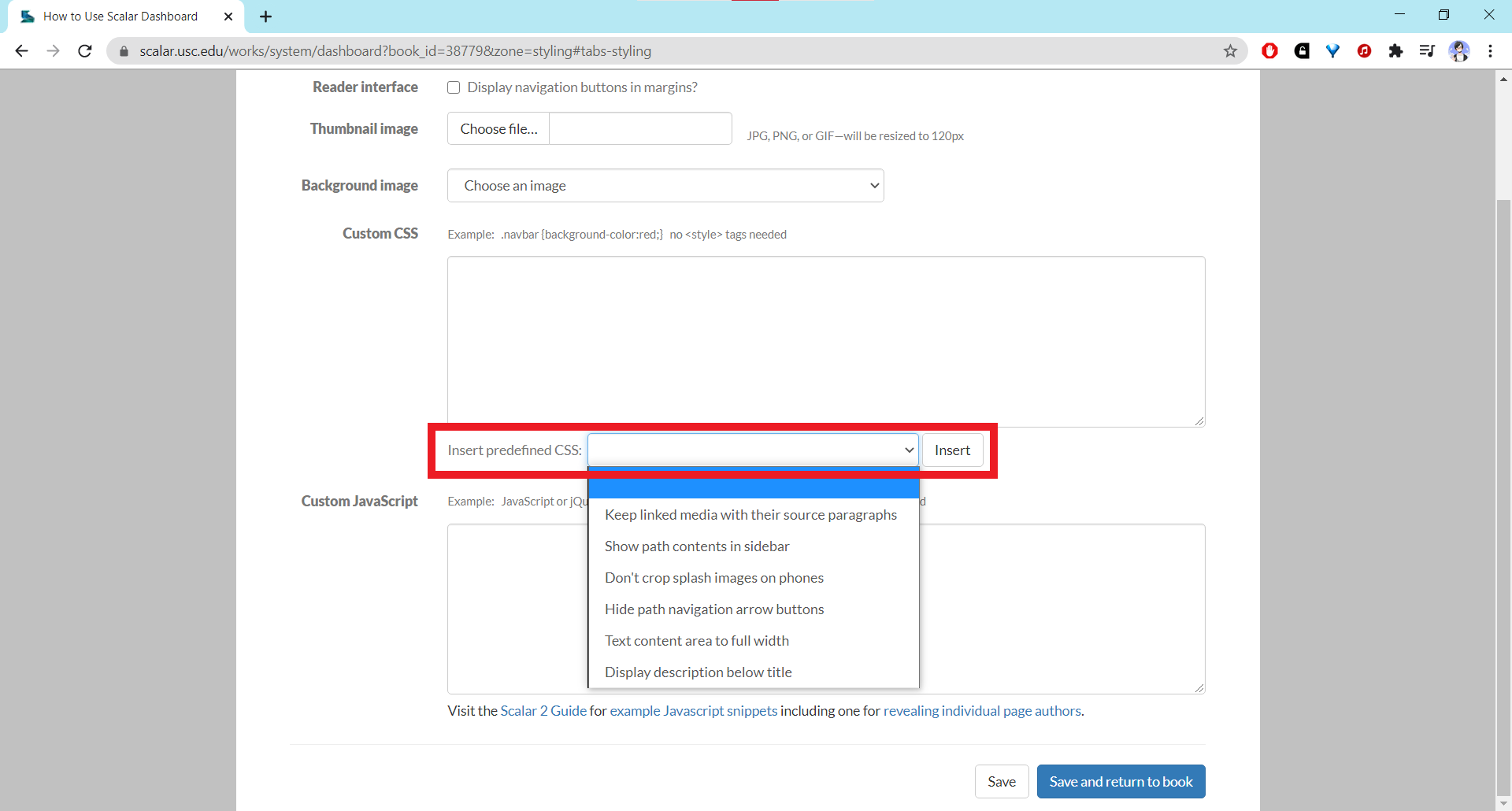
<style>tags. - You can also insert predefined CSS provided by Scalar by using the dropdown menu below the main CSS code field. Select the desired option and click the “Insert” button.
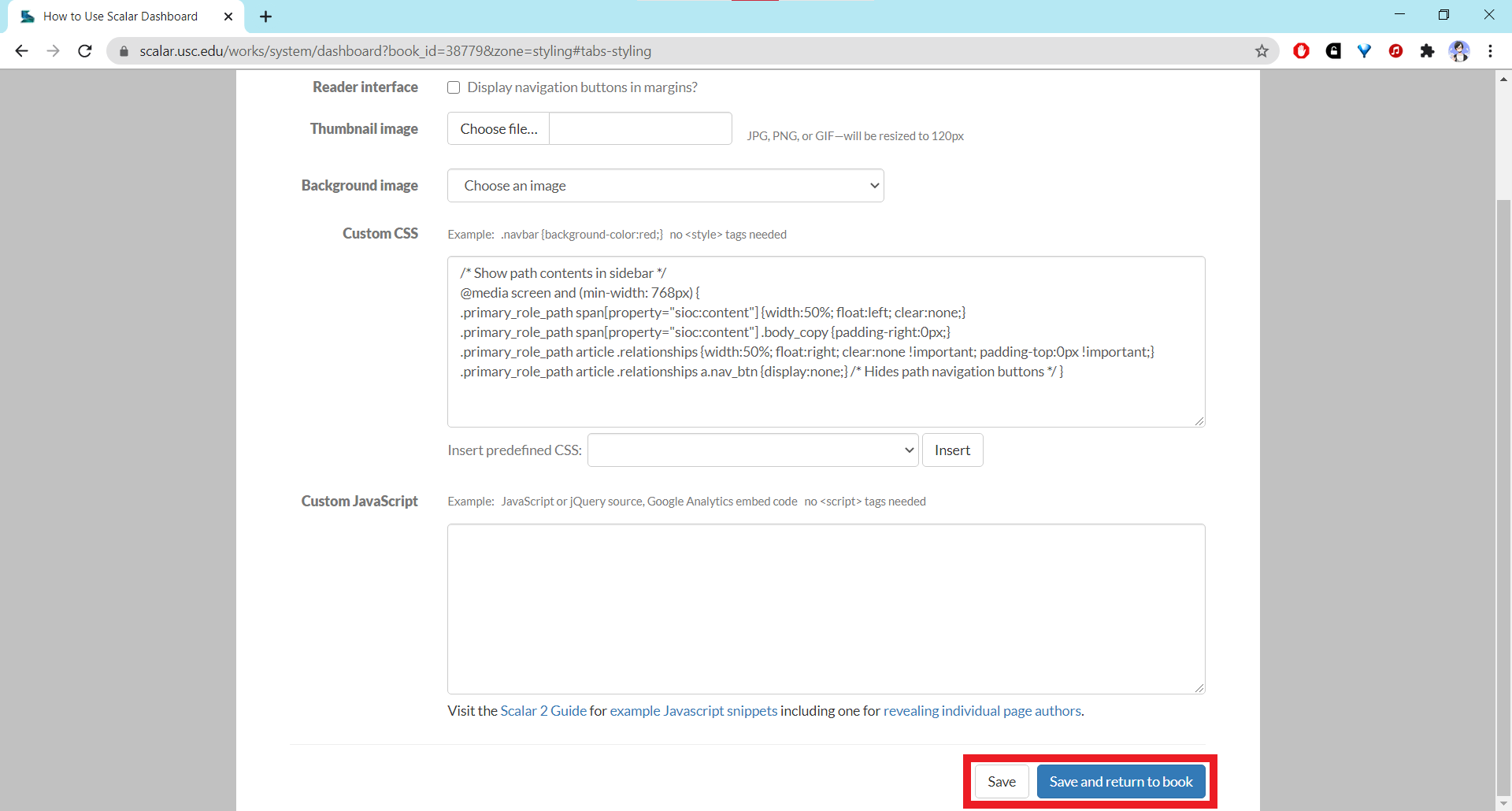
- The code should appear in the Custom CSS code field. Make sure to save your CSS using the “Save” buttons at the bottom of the page.
Customizing a Page or Element
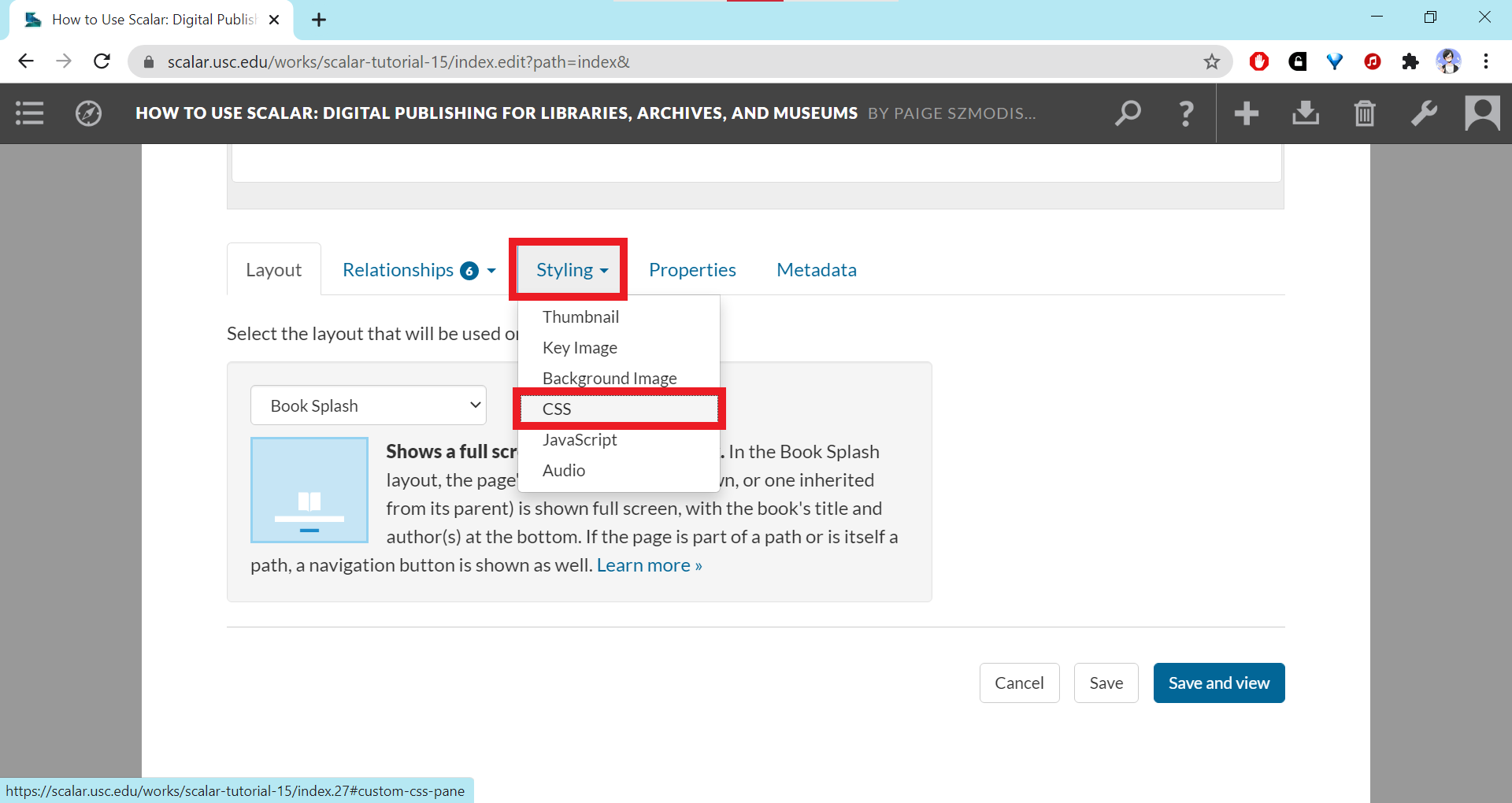
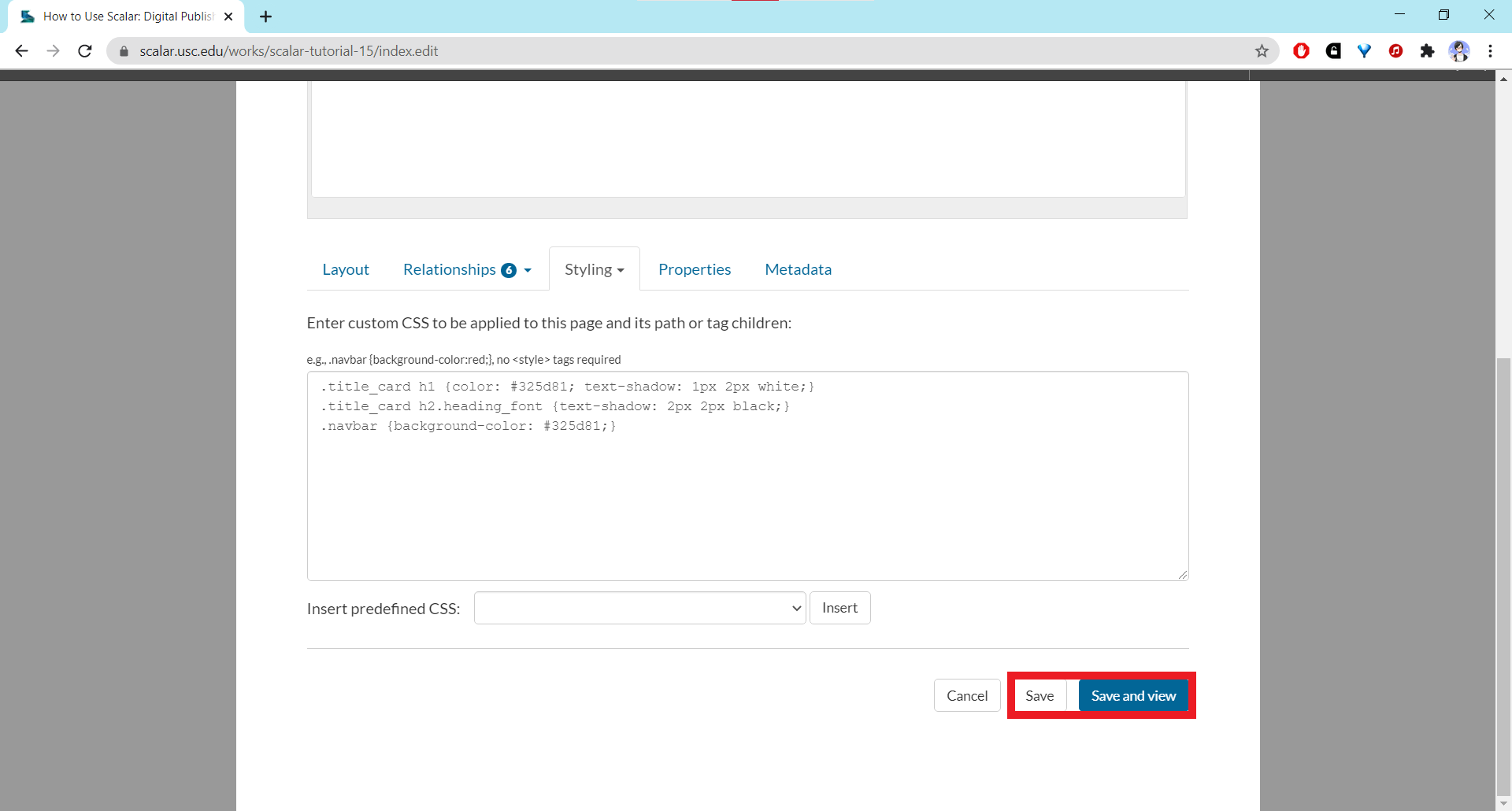
- To customize the CSS for a particular page or element, open the editor for the page and click on the Styling tab underneath the text editor field. Locate CSS on the dropdown menu and click on it.
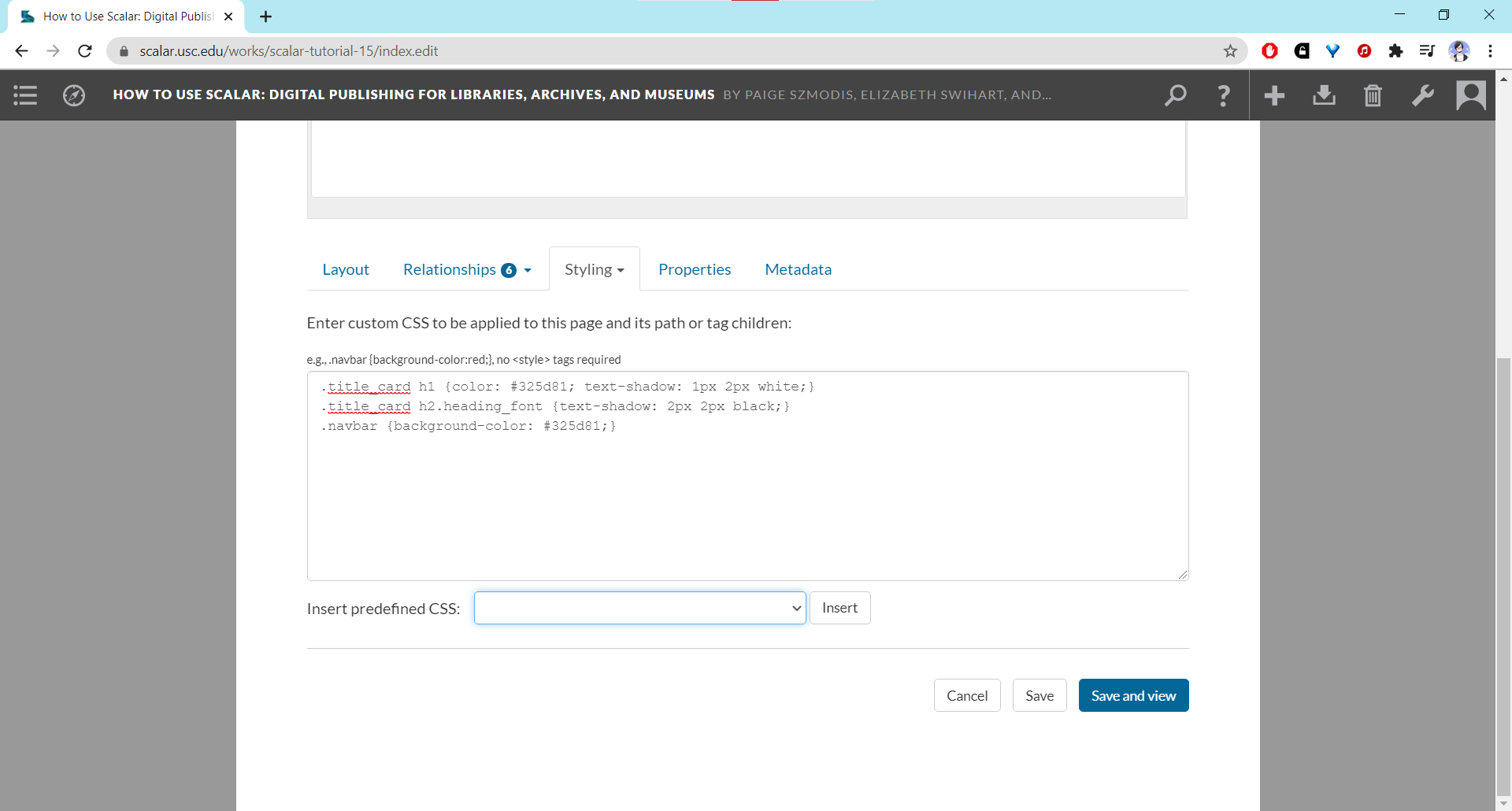
- The area under the tabs should refresh to show a CSS input field. As with the CSS input field for the entire book, the CS input field here can also be used without making use of the HTML
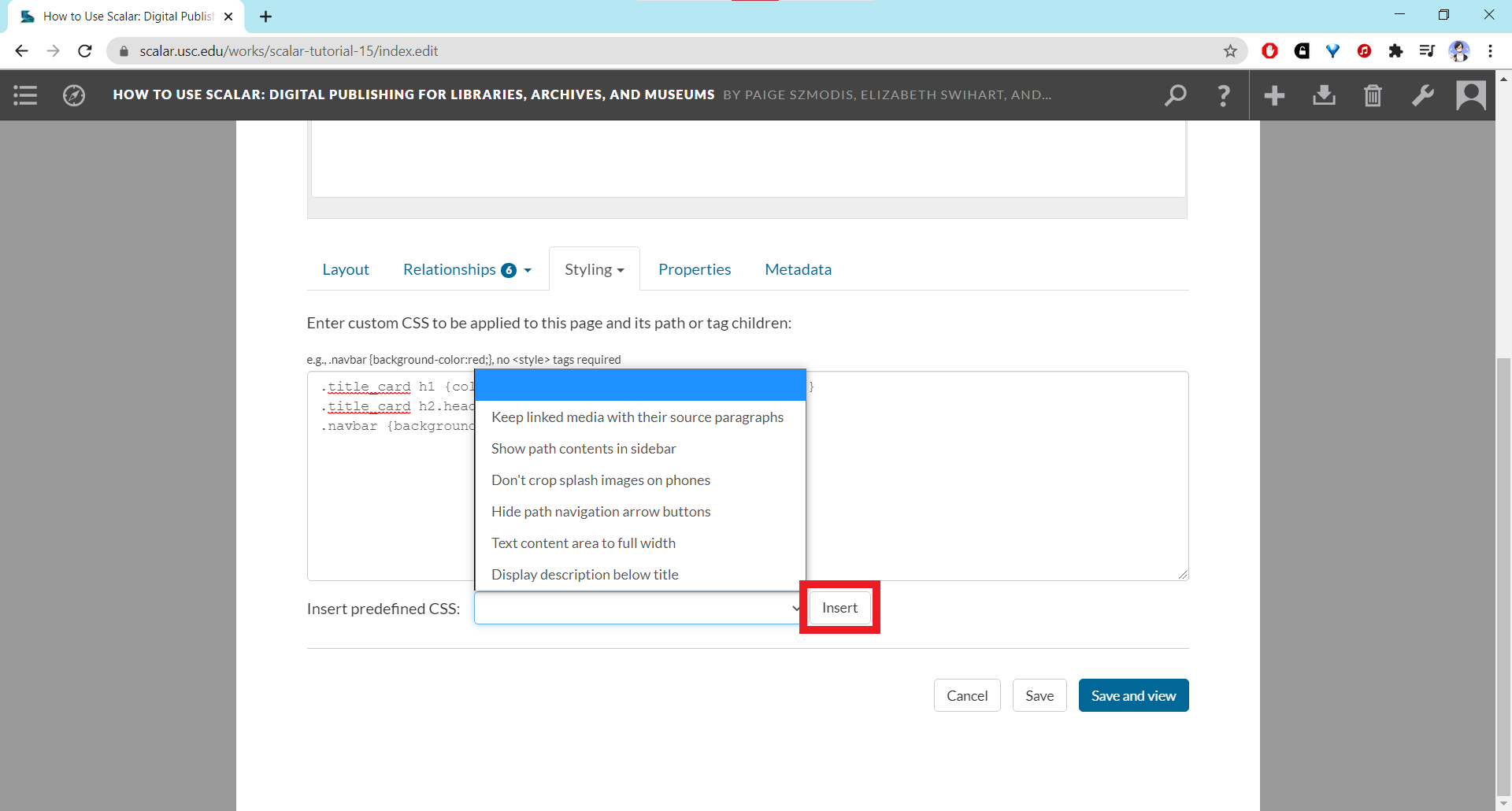
<style>tags. - You can also insert predefined CSS using the dropdown menu. Select the desired option and click “Insert.”
- The code should appear in the Custom CSS code field. Make sure to save your CSS using the “Save” buttons at the bottom of the page.
For more tips, check out the Scalar 2 user guide for how to alter the CSS. For those who are familiar with HTML and CSS, further experimenting is encouraged. CSS changes applied to pages that are paths will also apply to the other pages on the same path. Be sure to use the correct selectors for page-specific elements to avoid unwanted aesthetic changes in other parts of the book.
This page has paths:
- Using HTML/CSS/JavaScript Shenwei Chang
This page references:
- Screenshot of Styling tab in page editor
- Screenshot of Custom CSS section of Styling tab on dashboard
- Screenshot of Custom CSS section in page editor
- Screenshot of predefined CSS dropdown on dashboard
- Screenshot of save buttons for Styling tab on dashboard
- Screenshot of How to Use Scalar path contents after CSS applied
- Screenshot of Header toolbar
- Screenshot of predefined CSS dropdown in page editor
- Screenshot of Save buttons for Styling tab in page editor
- Screenshot of Styling tab on dashboard