Thanks for your patience during our recent outage at scalar.usc.edu. While Scalar content is loading normally now, saving is still slow, and Scalar's 'additional metadata' features have been disabled, which may interfere with features like timelines and maps that depend on metadata. This also means that saving a page or media item will remove its additional metadata. If this occurs, you can use the 'All versions' link at the bottom of the page to restore the earlier version. We are continuing to troubleshoot, and will provide further updates as needed. Note that this only affects Scalar projects at scalar.usc.edu, and not those hosted elsewhere.
How to Use Scalar: Digital Publishing for Libraries, Archives, and MuseumsMain MenuAbout This ProjectAbout the creators and purpose of this projectWhat Is Scalar?A brief introduction to what Scalar can do as a platform.Scalar in Libraries, Archives, and MuseumsWhy Scalar is a relevant tool for librarians and other information professionals to learn.How to Use ScalarStep-by-step instructions for creating your first Scalar book.More ResourcesAnnotated list of resources with more information on using SclarPaige Szmodisc78c538ae17b32016e9167236f1aa8c213efc288Elizabeth Swihart2a47b61d624c2ba01890fc87ecc1d0c25d5107a3Shenwei Chang5f647018e81e72f2978f28d4dfbea5d53d6dd876
Using CSS
12021-03-18T02:37:44-07:00Shenwei Chang5f647018e81e72f2978f28d4dfbea5d53d6dd8763877916How to use CSS to customize the appearance of your bookplain2021-03-21T08:14:07-07:00Shenwei Chang5f647018e81e72f2978f28d4dfbea5d53d6dd876If you want to change the appearance of your book from the default settings, you can use the custom CSS functionality to override the defaults. The CSS can be customized so that the changes are reflected across the entire book, or you can customize the appearance of a particular page.
Customizing the Book
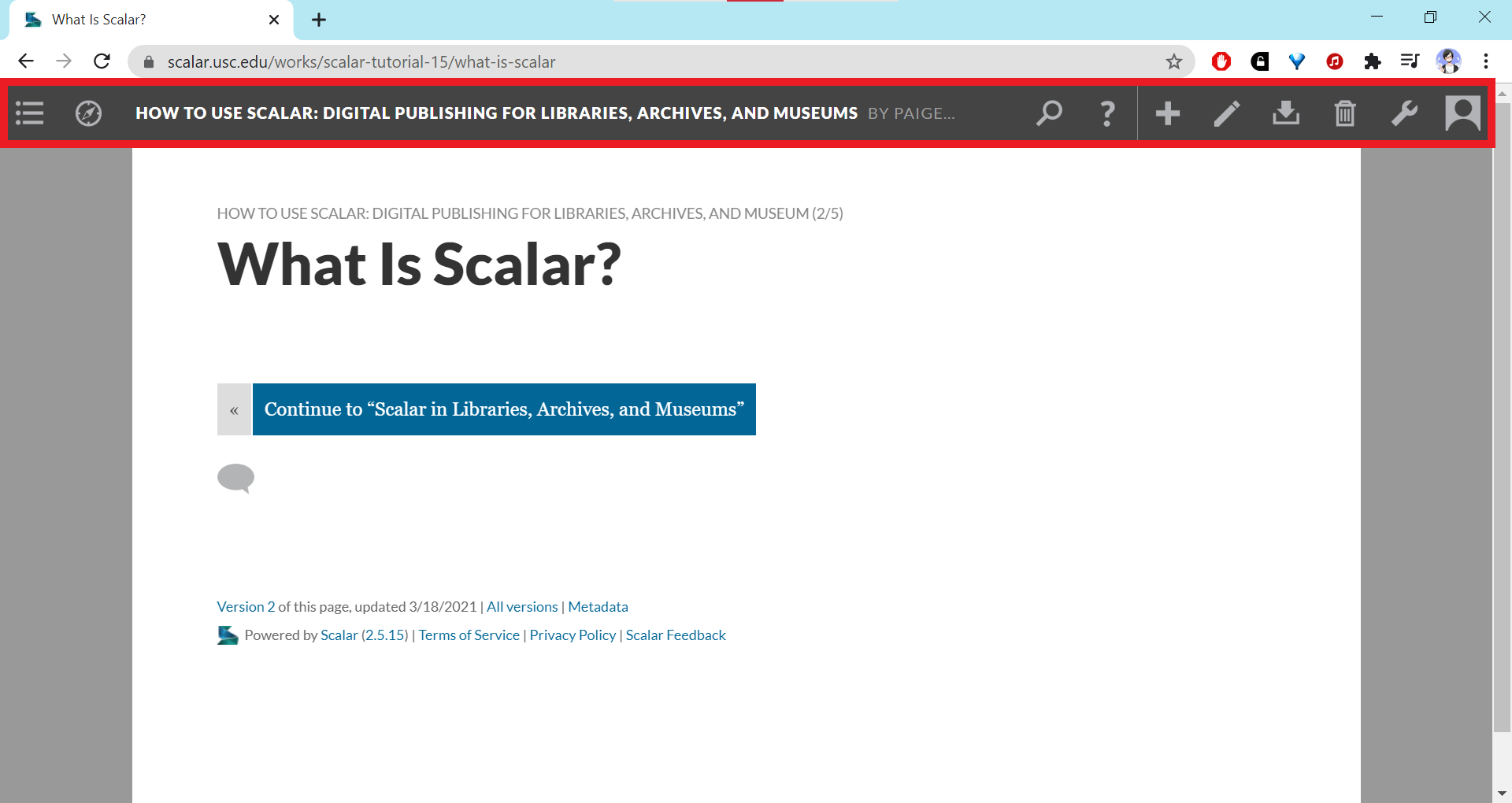
To customize the CSS for the entire book, go to the dashboard by clicking the wrench icon.
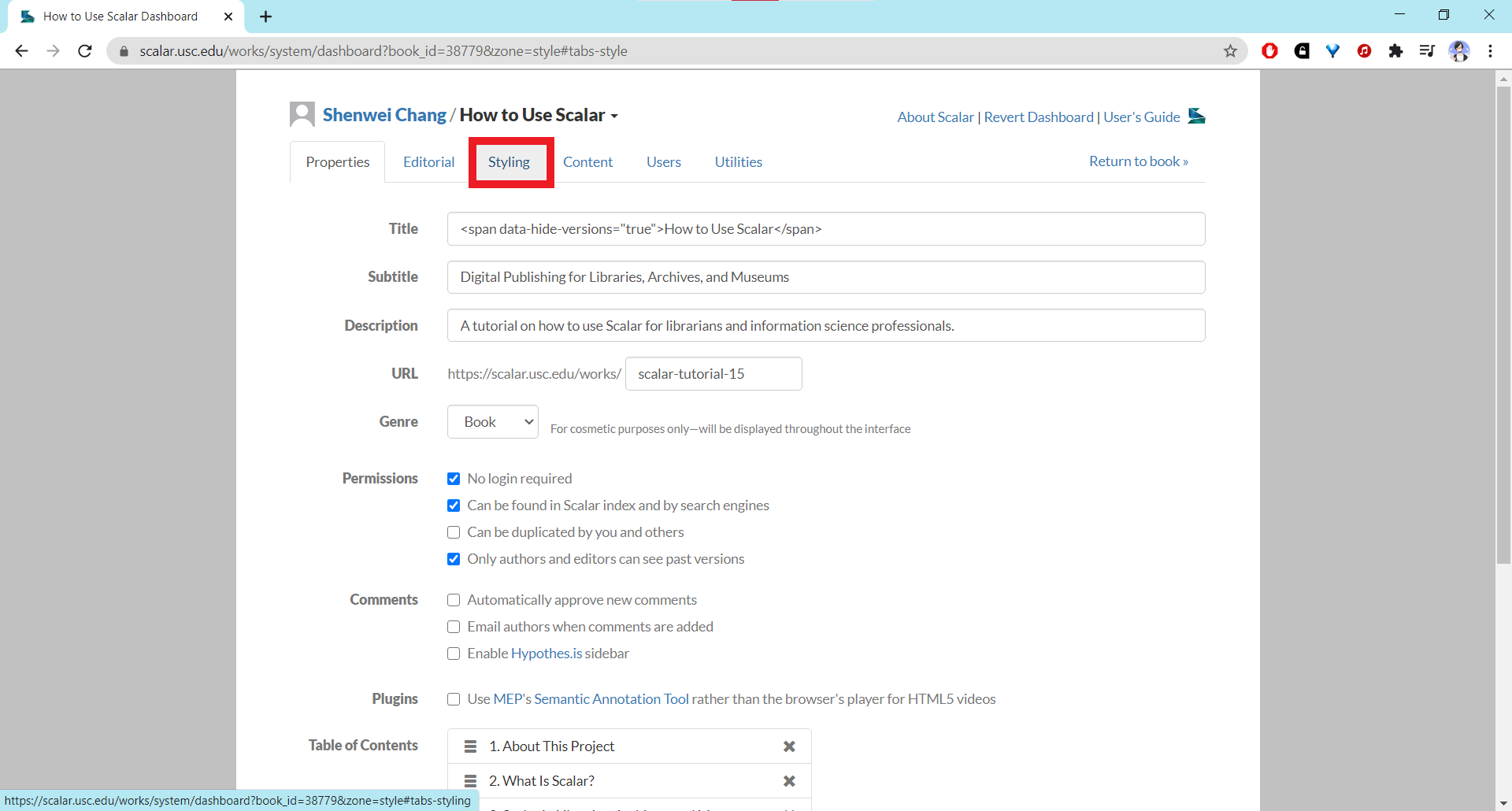
When the dashboard loads there should be a tab labeled Styling. Click on that tab.
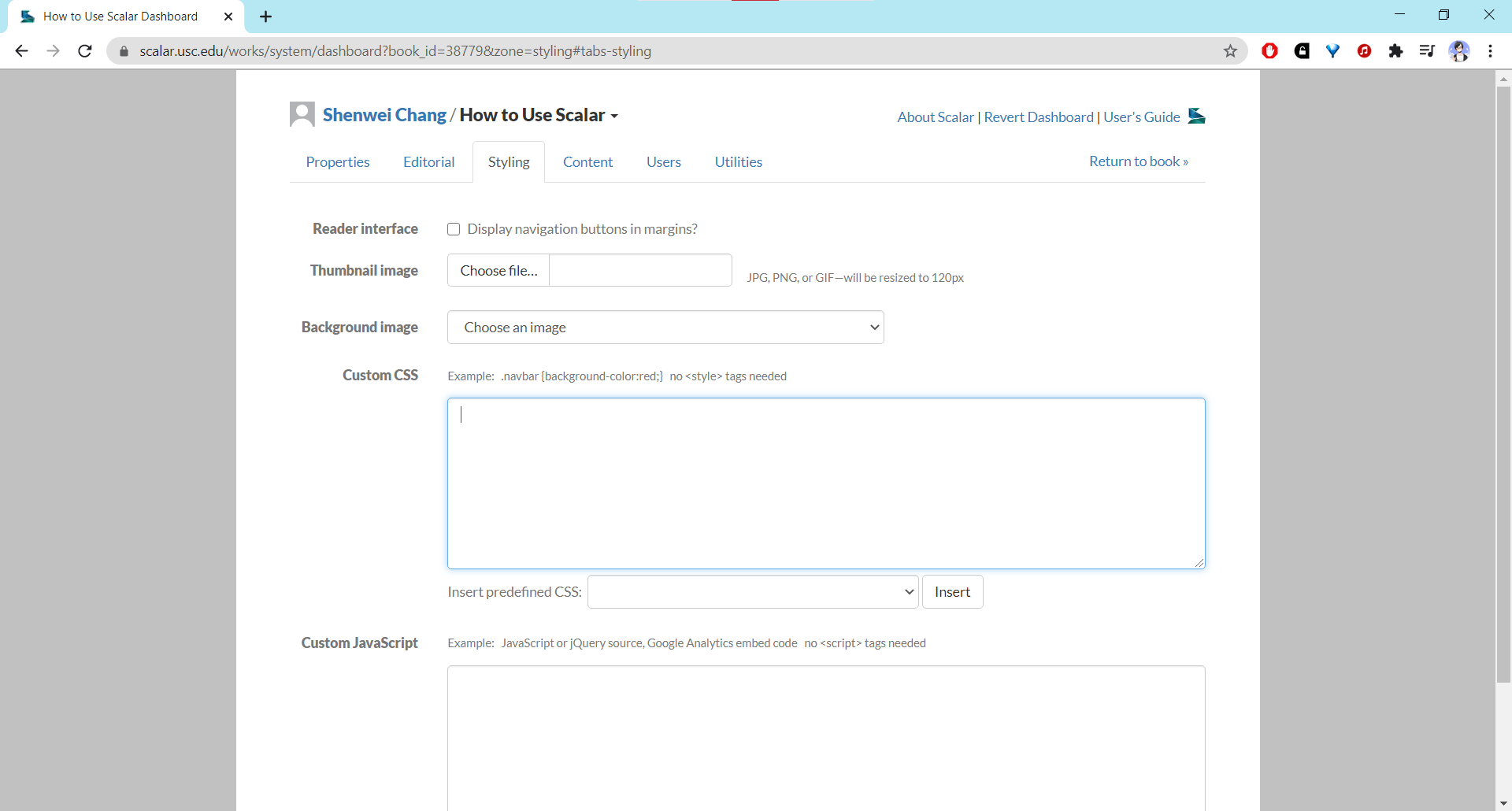
Under the Styling tab there should be a section labeled custom CSS. You can type any CSS code directly into the input field without enclosing it in HTML <style> tags.
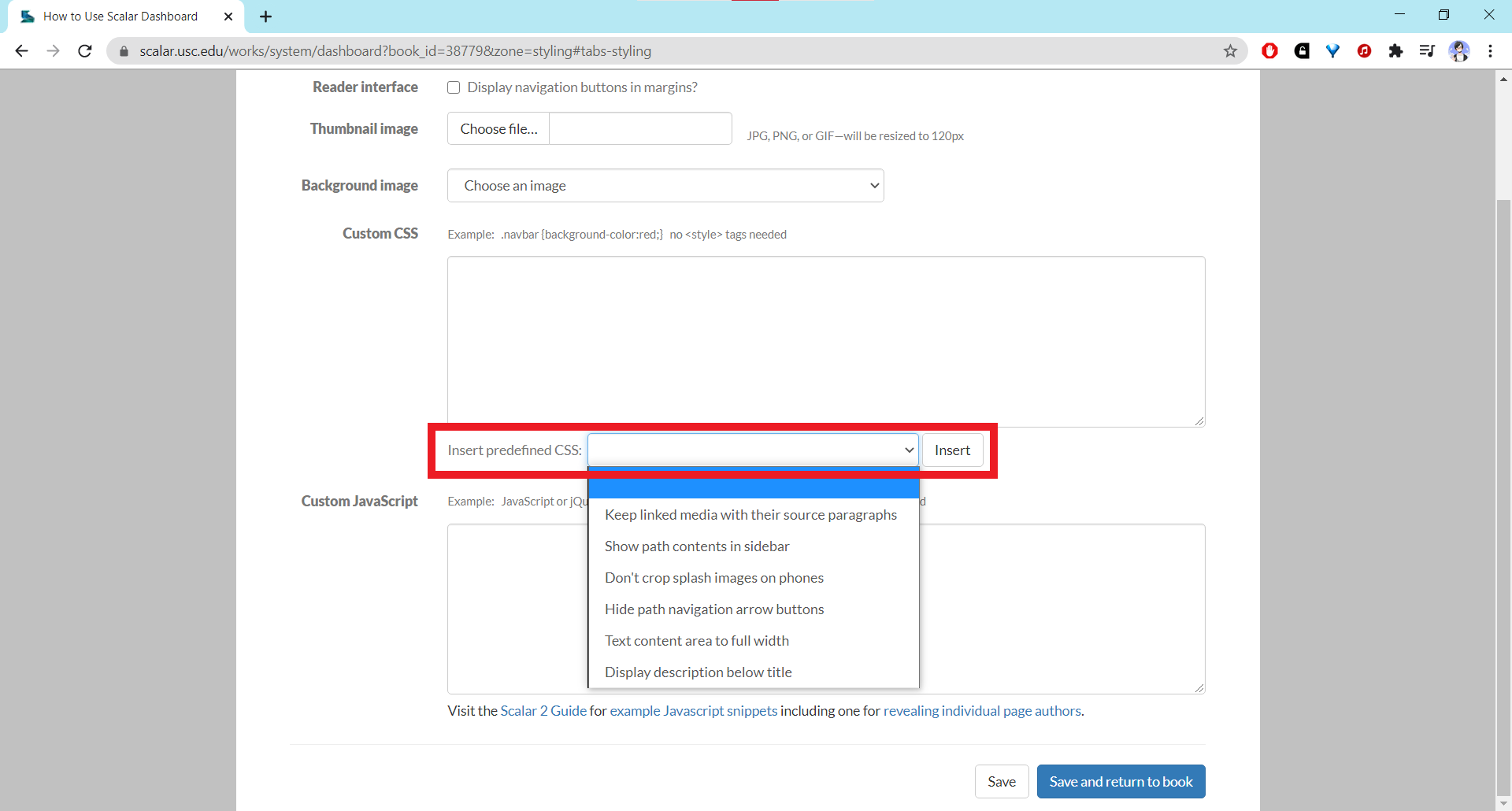
You can also insert predefined CSS provided by Scalar by using the dropdown menu below the main CSS code field. Select the desired option and click the “Insert” button.
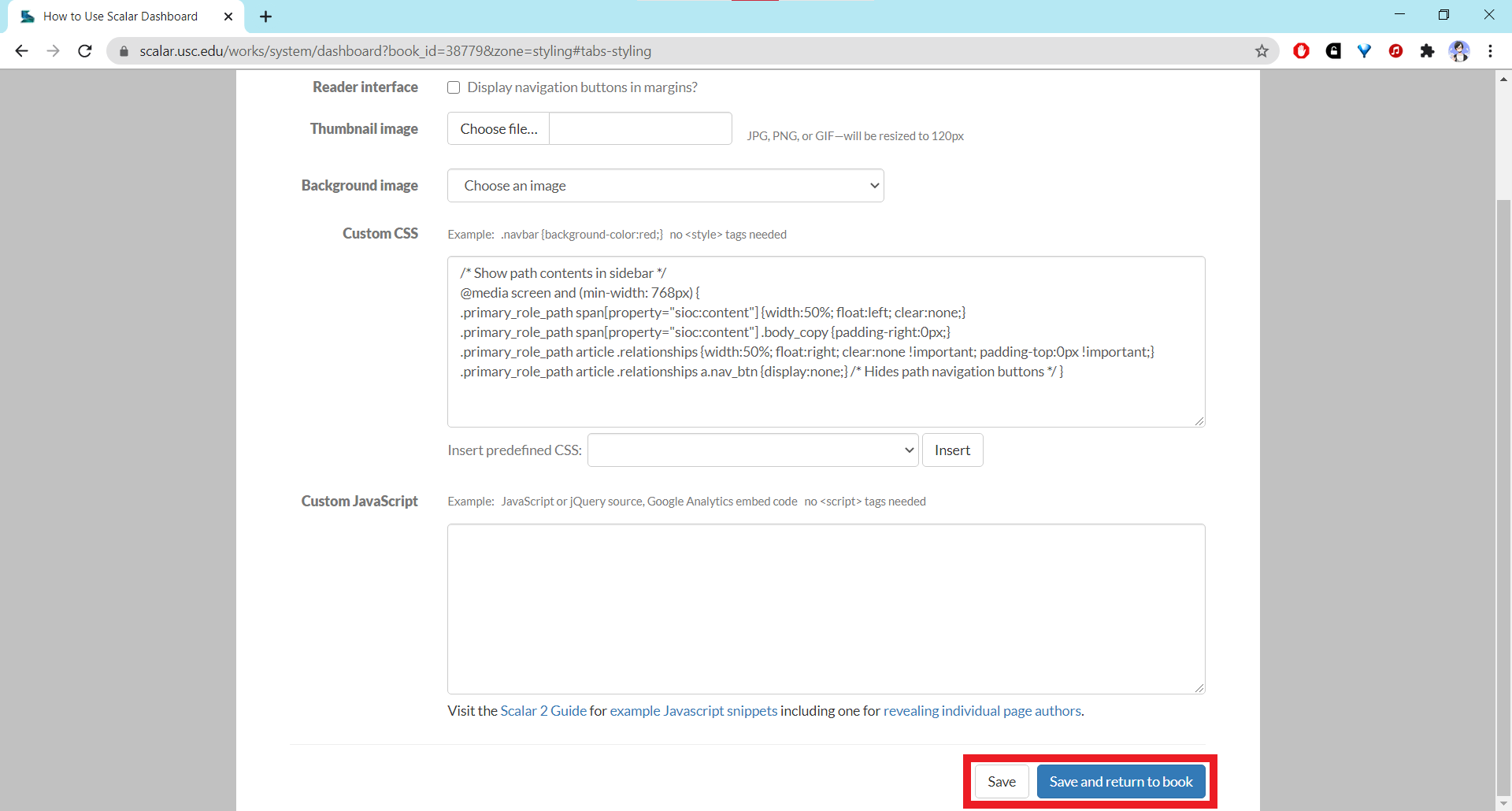
The code should appear in the Custom CSS code field. Make sure to save your CSS using the “Save” buttons at the bottom of the page.
The screenshot below shows the effects of applying the “Show path contents in side bar” predefined CSS whose code is shown in the previous step.
Customizing a Page or Element
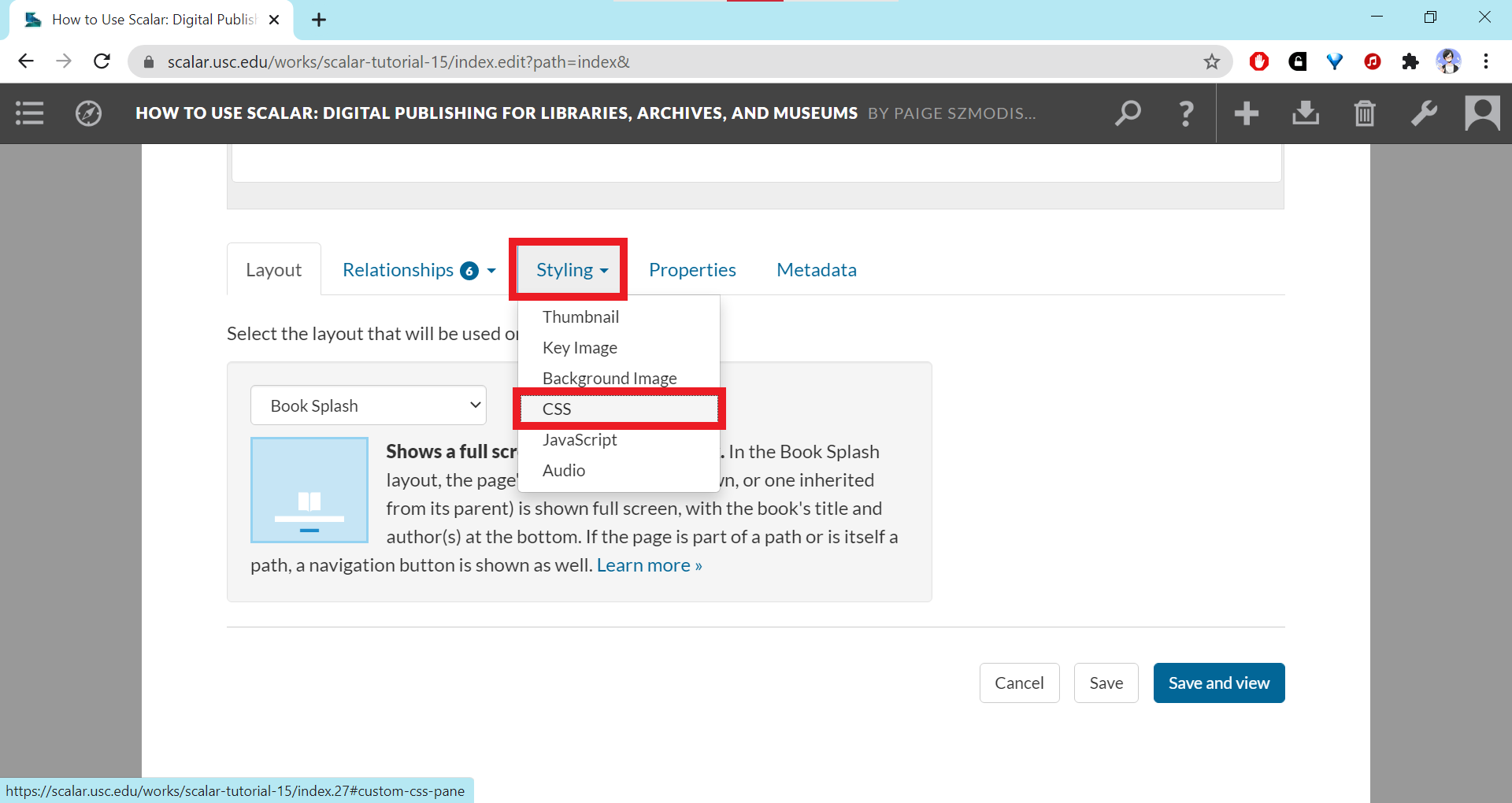
To customize the CSS for a particular page or element, open the editor for the page and click on the Styling tab underneath the text editor field. Locate CSS on the dropdown menu and click on it.
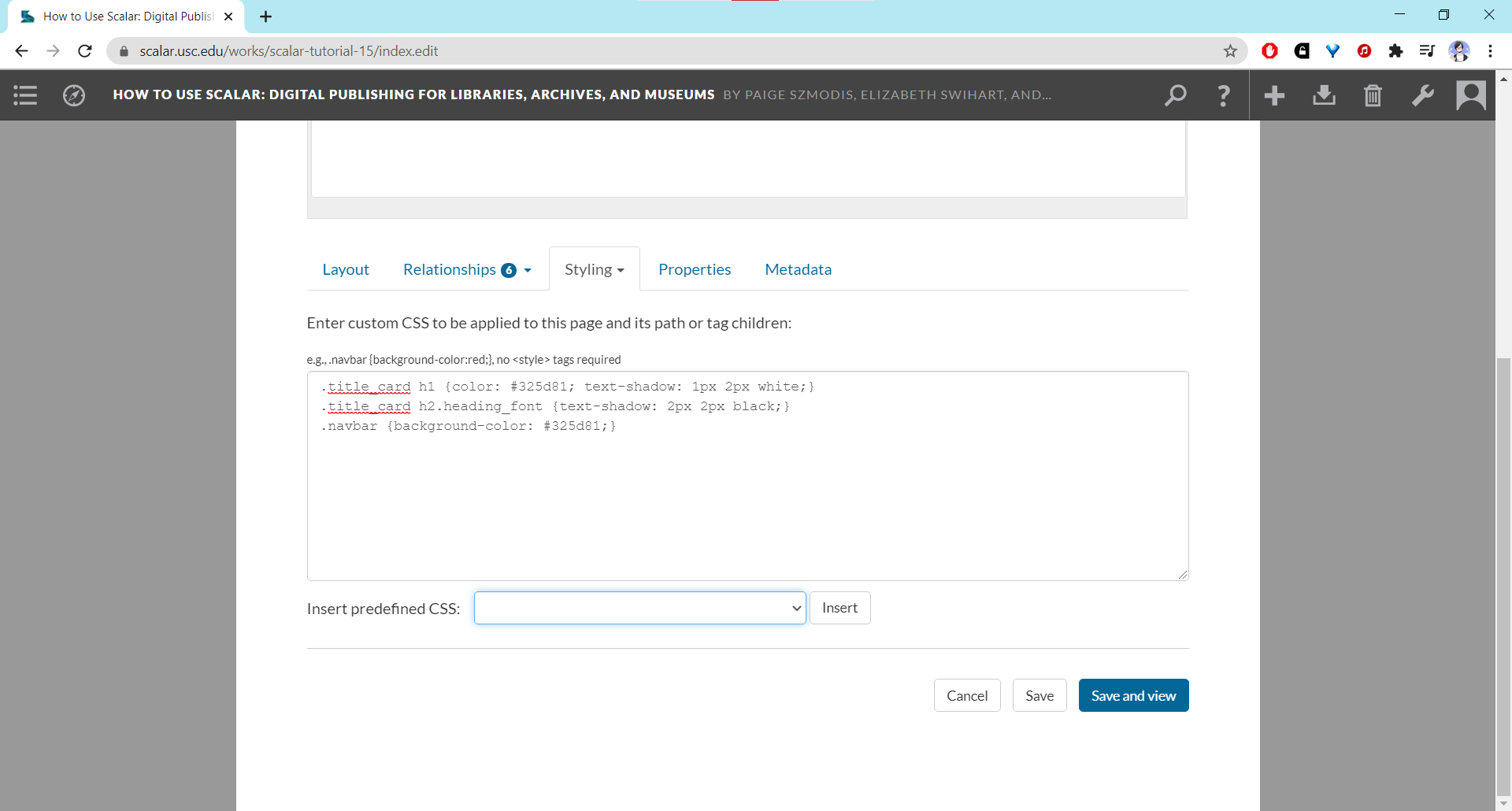
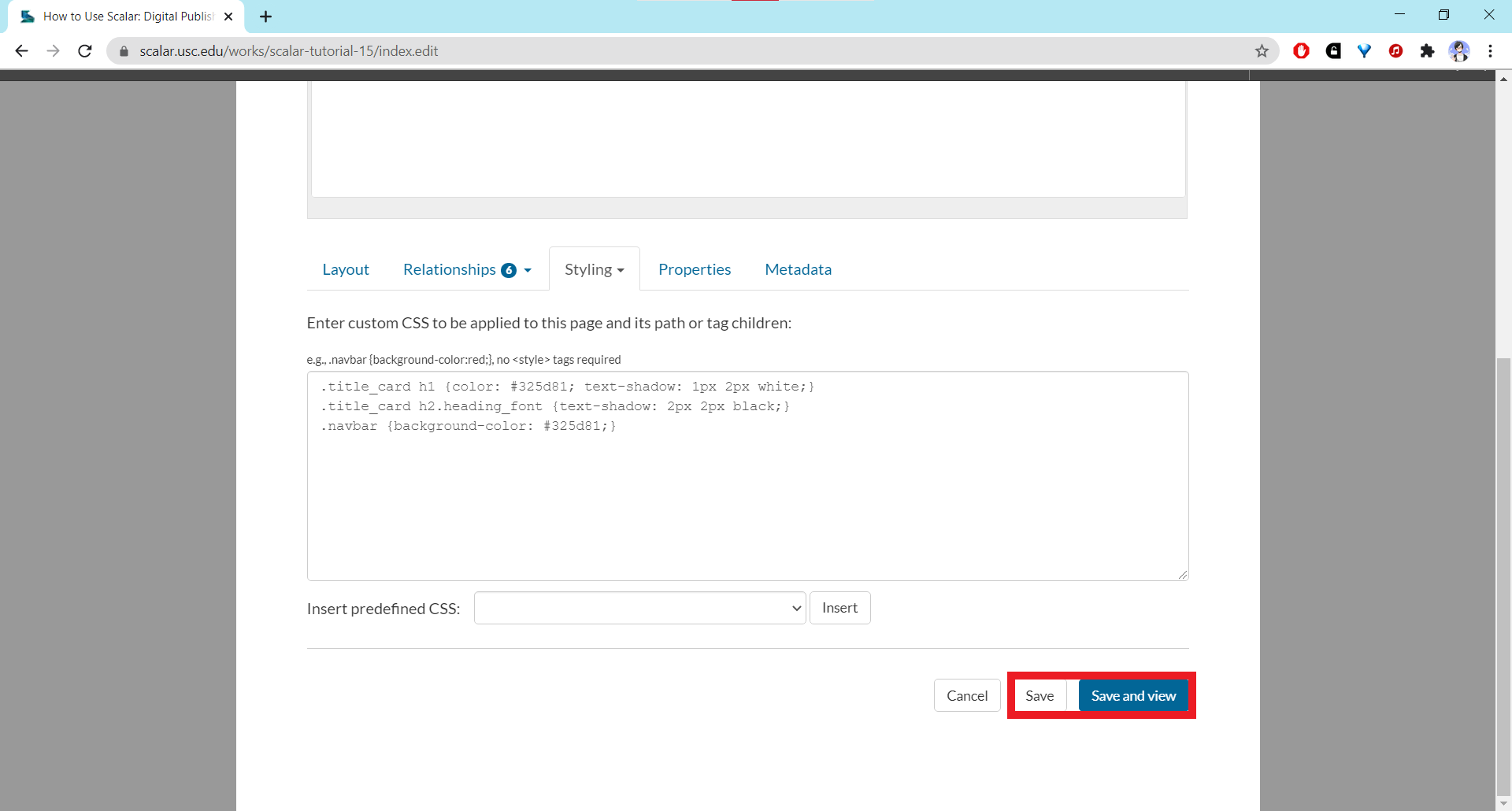
The area under the tabs should refresh to show a CSS input field. As with the CSS input field for the entire book, the CS input field here can also be used without making use of the HTML <style> tags.
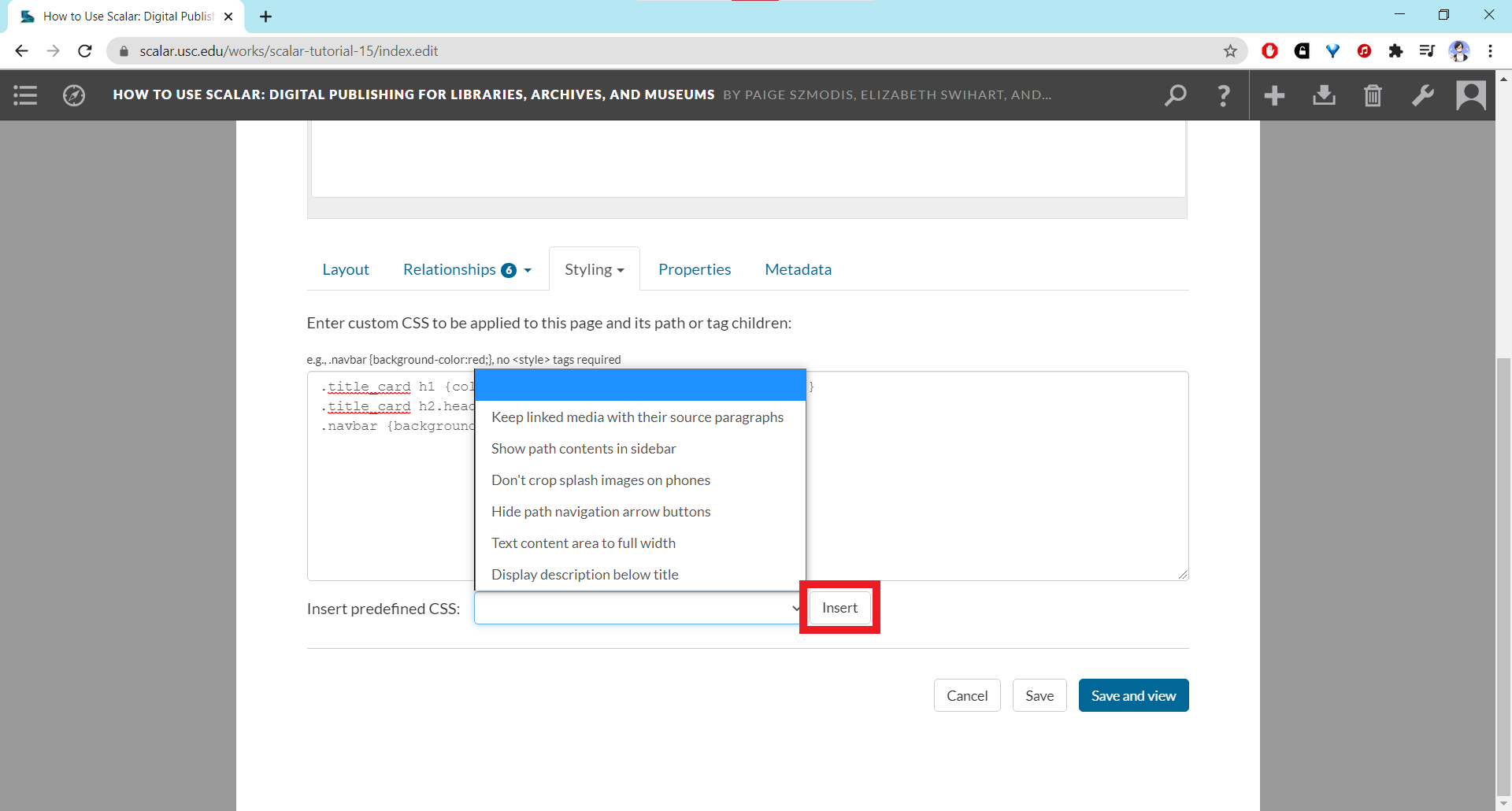
You can also insert predefined CSS using the dropdown menu. Select the desired option and click “Insert.”
The code should appear in the Custom CSS code field. Make sure to save your CSS using the “Save” buttons at the bottom of the page.
The carousel below shows screenshots of the index page before and after the custom CSS is applied. For more tips, check out the Scalar 2 user guide for how to alter the CSS. For those who are familiar with HTML and CSS, further experimenting is encouraged. CSS changes applied to pages that are paths will also apply to the other pages on the same path. Be sure to use the correct selectors for page-specific elements to avoid unwanted aesthetic changes in other parts of the book.
This page has paths:
12021-03-18T02:36:46-07:00Shenwei Chang5f647018e81e72f2978f28d4dfbea5d53d6dd876Using HTML/CSS/JavaScriptShenwei Chang7How to use HTML, CSS, and JavaScript to customize your bookplain10655352021-03-21T08:21:01-07:00Shenwei Chang5f647018e81e72f2978f28d4dfbea5d53d6dd876
This page references:
1media/Screenshot showing CSS option under Styling_thumb.png2021-03-20T16:59:36-07:00Screenshot of Styling tab in page editor2Screenshot showing the Styling tab in the page editormedia/Screenshot showing CSS option under Styling.pngplain2021-03-20T17:00:15-07:00
1media/Screenshot showing path contents after CSS applied_thumb.png2021-03-20T18:20:26-07:00Screenshot of How to Use Scalar path contents after CSS applied1Screenshot showing the How to Use Scalar path page contents after the custom CSS is appliedmedia/Screenshot showing path contents after CSS applied.pngplain2021-03-20T18:20:26-07:00
1media/Screenshot showing predefined CSS options in page editor_thumb.png2021-03-20T18:32:12-07:00Screenshot of predefined CSS dropdown in page editor1Screenshot showing predefined CSS dropdown menu in the page editormedia/Screenshot showing predefined CSS options in page editor.pngplain2021-03-20T18:32:12-07:00
1media/Screenshot showing save buttons for Styling tab in page editor_thumb.png2021-03-20T18:39:02-07:00Screenshot of Save buttons for Styling tab in page editor1Screenshot showing the Save options for the CSS section of the Styling tab in the page editormedia/Screenshot showing save buttons for Styling tab in page editor.pngplain2021-03-20T18:39:02-07:00
1media/Screenshot showing Styling tab in dashboard_thumb.png2021-03-20T17:15:04-07:00Screenshot of Styling tab on dashboard1Screenshot showing the Styling tab on the dashboardmedia/Screenshot showing Styling tab in dashboard.pngplain2021-03-20T17:15:05-07:00
1media/Screenshot showing CSS code field in dashboard_thumb.png2021-03-20T17:15:56-07:00Screenshot of Custom CSS section of Styling tab on dashboard1Screenshot showing the Custom CSS section of the Styling tab on the dashboardmedia/Screenshot showing CSS code field in dashboard.pngplain2021-03-20T17:15:56-07:00
1media/Screenshot showing CSS code field in page editor_thumb.png2021-03-20T17:44:02-07:00Screenshot of Custom CSS section in page editor1Screenshot showing the Custom CSS field in the page editormedia/Screenshot showing CSS code field in page editor.pngplain2021-03-20T17:44:03-07:00
1media/Screenshot showing predefined CSS options on dashboard_thumb.png2021-03-20T17:50:34-07:00Screenshot of predefined CSS dropdown on dashboard1Screenshot showing the predefined custom CSS options on the dashboardmedia/Screenshot showing predefined CSS options on dashboard.pngplain2021-03-20T17:50:34-07:00
1media/Screenshot showing save buttons on Styling page on dashboard_thumb.png2021-03-20T18:19:33-07:00Screenshot of save buttons for Styling tab on dashboard1Screenshot showing the Save options for the Styling tab on the dashboardmedia/Screenshot showing save buttons on Styling page on dashboard.pngplain2021-03-20T18:19:34-07:00