Scalar link rollover
1 2014-10-01T16:38:32-07:00 Erik Loyer f862727c4b34febd6a0341bffd27f168a35aa637 3296 1 A screenshot showing the pop-up that appears when rolling over a Scalar link. plain 2014-10-01T16:38:32-07:00 Erik Loyer f862727c4b34febd6a0341bffd27f168a35aa637This page is referenced by:
-
1
2014-10-01T16:38:34-07:00
Reading in Scalar
1
The types of content in a Scalar book and how they work together.
split
2014-10-01T16:38:34-07:00
Text
While text itself needs no introduction, its appearance in Scalar bears mentioning a few items of note:
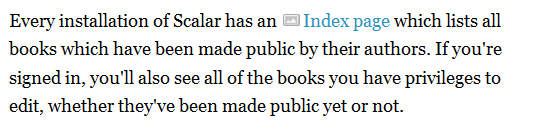
- Links. Rolling over a link in the body text of a Scalar book often reveals additional information about its contents.
- Media Links. Each media link is preceded by an icon for the type of media it references; clicking a link to a time-based media file causes it to start (and subsequently to stop) playing, while links to other media types simply highlight the media on the page when clicked.
- Notes links. These links are preceded by a note icon and serve a similar function as footnotes, displaying additional content when rolled over.
Media
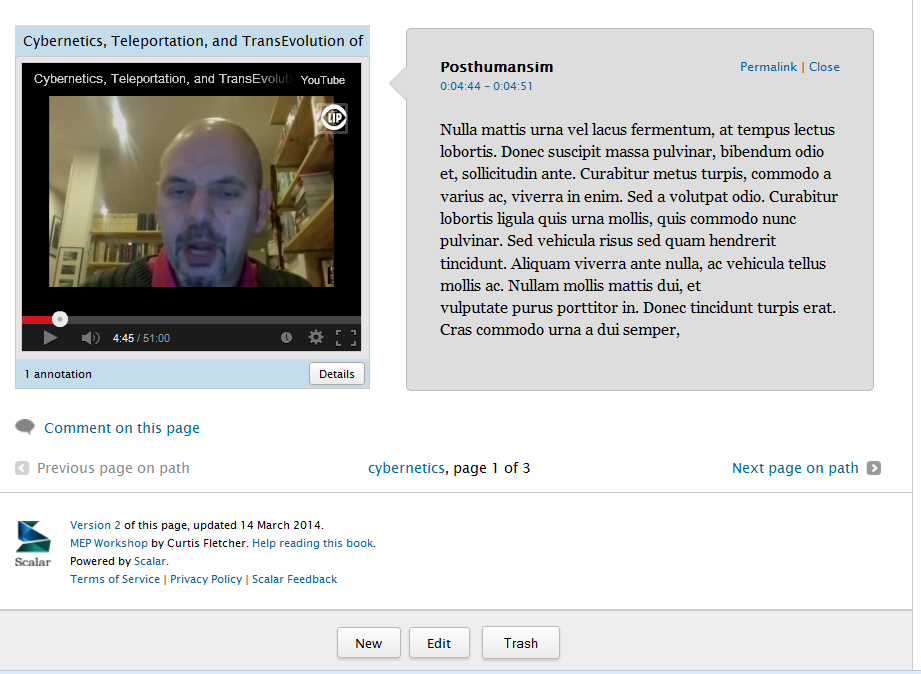
Embedded media files have a few extra features that go beyond simple playback and viewing. The Details button in the lower left corner of the media opens an expanded view in which all aspects of the media file, from annotations to metadata, can be examined. Clicking "Permalink" will take you to the media's dedicated page, and clicking "Popout" will open the media file itself in a new window.
If a media file has annotations, they will be available in different ways depending on the media type and display method. In some cases, an "Annotations" link will toggle the display of all of the file's annotations, which can be individually clicked; in others, you'll need to click the "Details" link to access them. For text and time-based media, pop-up "live annotations" will be displayed when the media is cued up to an annotated region.
Paths
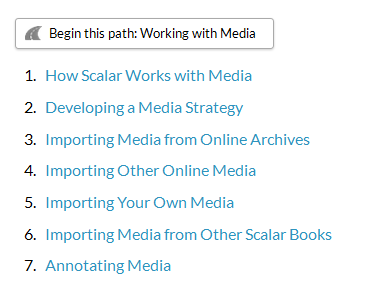
Paths are sequences of pages--like chapters in a book, but more flexible. You'll know you're about to embark on a path when you see a "Begin this path" button at the bottom of a page, with a table of contents beneath. Clicking the button (or on any of the listed pages) will take you into the path. Once you're on a path, additional navigation at the top and bottom of the page identifies the name of the path you're on, how far you've traveled, and provides links to move stepwise along the path. Sometimes paths lead to other paths; other times they lead back to the "Home" page of the book.
One of the things that makes Scalar paths unique is that they can share content with each other--in other words, a single page or media file can belong to multiple paths. In that case, the additional "intersecting" paths are shown at the top of the page, and by clicking the name of one of these paths you can "switch tracks" and proceed in a new direction within the book.
If you want to get a better sense of the structure of all of the paths in a book, try the Path Visualization.
Tags
Tags are markers that are applied to pages that have something in common. If the page you're looking at has been tagged, you'll see a tag icon at the bottom of the page, followed by the name of the tag and links to other pieces of content that share the same tag (or tags).
If you want to see how tags in a book are interrelated, try the Tag Visualization.
Comments
Any reader is free to submit a comment on any page or media file in a Scalar book by clicking the "Comment on" link at the bottom of the content, whether or not they have a Scalar account. It's even possible to add a comment to another comment in threaded fashion. New comments, however, will not be visible within the book until approved to go live by an author user for the book.
-
1
2014-10-01T16:38:34-07:00
Whole-Part Relationships
1
Creating relationships between whole pieces of content and parts of other content.
text
2014-10-01T16:38:34-07:00
There are four ways to create relationships between whole pieces of content and parts of other content in Scalar: annotations, media links, notes, and Scalar links.
Annotations
An annotation is content which is linked to a specific portion of a media file. Currently annotations can only be created for images, audio, video, and plain text files. You can create annotations by navigating to the media file and clicking the "Edit annotations" button at the bottom, or by editing an existing page and adding the annotation relationship manually. Any page or media file can become an annotation, and can even annotate more than one media file at different points simultaneously.
Readers who arrive at the annotation will see its own content (either text or media) first, and then below that, the annotated media. Media files with annotations will display those annotations when matching segments of the media are played or selected; access to the annotations is also provided wherever the media is displayed within Scalar.
Media Links
A media link connects a portion of the text of a page to a media file. Once created, Scalar can use that link as a trigger for the automatic embedding of the referenced media into the page. Simply put, it's a hyperlink to media which Scalar can use to display the media itself. Annotation links function in a similar way, only they link to a specific annotated portion of the media.
Media links look like conventional hyperlinks, with an added media icon which appears immediately before the link. Clicking on a link causes the related media to highlight and, if the media is audio or video, to play.
Notes
A note is content which is linked to a portion of the text of a page. Notes are used most often like footnotes would be used in a conventional book, because when the user rolls over the link, the complete content of the note is displayed.
Note links look like conventional hyperlinks, but appear green and have an added note icon which appears immediately before the link.
Scalar Links
Scalar links connect a portion of the text of a page to another piece of Scalar content--they are essentially standard hyperlinks to other parts of your book, and they appear just like standard links.