Scalar's 'additional metadata' features have been disabled on this install. Learn more.
Scalar 2 User's GuideMain MenuGetting StartedExplains account and book creation, and some interface basics.QuickStartsA path of all QuickStart content in this user's guide.Working with MediaHow to get the most out of your use of media in Scalar.Working with ContentCreating and editing content in Scalar.Working with WidgetsWorking with StructureHow to use Scalar's many options for structuring publications.Editorial WorkflowHow to use features for performing editorial review of content.VisualizationsExploring the contents of a book visually.LensesAn introduction to lenses, a tool for searching and visualizing Scalar content.Advanced TopicsDescribing Scalar's more advanced features.Third Party Plugins and Platforms
Grid visualization view
12015-05-28T22:59:16-07:00Curtis Fletcher3225f3b99ebb95ebd811595627293f68f680673e32962A screenshot of Scalar's grid visualization.plain2015-05-29T15:25:30-07:00Curtis Fletcher3225f3b99ebb95ebd811595627293f68f680673e
This page is referenced by:
12014-10-01T16:38:31-07:00Grid Visualization11A book's content, displayed in a grid.plain2016-10-17T09:07:41-07:00
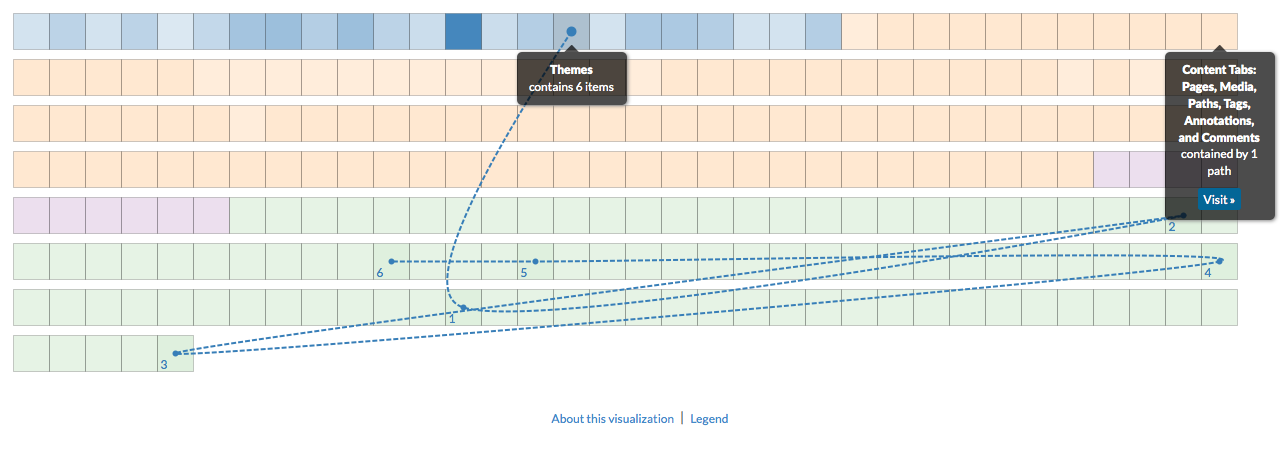
The grid visualization displays all content in the book in a grid format where each box represents a piece of content, color-coded by type. The darker the box, the more connections it has to other content (relative to the other boxes). Each line represents a connection, color-coded by type. You can roll over or click the boxes to browse connections, or click to add more content to the current selection, allowing multiple sets of relationships to be viewed simultaneously. To deselect a box, simply click it again.
Clicking an item's "View" button opens the associated content (page or media file).