Scalar's 'additional metadata' features have been disabled on this install. Learn more.
TEI Text Encoding: A FairCopy User Guide for COVEMain MenuGetting StartedDownload, Setup, and LoginNavigating the FairCopy InterfaceLocal/Remote Screens and Checking Out ResourcesImporting Text to FairCopyImport MethodsStart Encoding TextText Encoding IndexMonica Wolfe258808f5fb9e497e04f66e6176400bcc2422e128
IA1 Style Code Rend Value
1media/IA1 Style Code Rend Value_thumb.png2024-11-03T13:49:34-08:00Monica Wolfe258808f5fb9e497e04f66e6176400bcc2422e128463581plain2024-11-03T13:49:35-08:00Monica Wolfe258808f5fb9e497e04f66e6176400bcc2422e128
This page is referenced by:
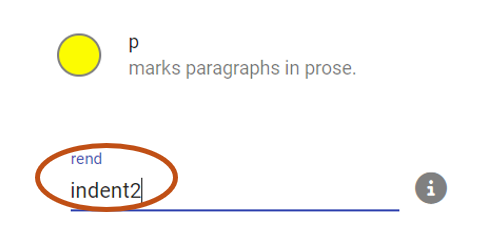
1media/3.jpeg2024-11-03T10:34:06-08:00Formatting Text with Indentations & Alignment11plain2024-11-11T10:10:23-08:00To modify indentation or alignment, click the p element (or any other element containing the text to be formatted) to open the Element Inspector. Type the appropriate style codeinto the rend field, as shown below. Multiple style codes may be used in the same rend field with a single space between codes.
List of Style Code Rend Values for Text Alignment & Indentation
Common Text Alignment
Align Right - style495 Block Quote or Epigraph (margin-left:10%; margin-right:10%) - style511
To indent text by a certain number of character spaces (most useful in formatting individual lines of poetry), type “indent#” into the rend field, replacing # with the number of spaces to indent. For example, “indent2” would indent a line two character spaces.
Using Caesuras
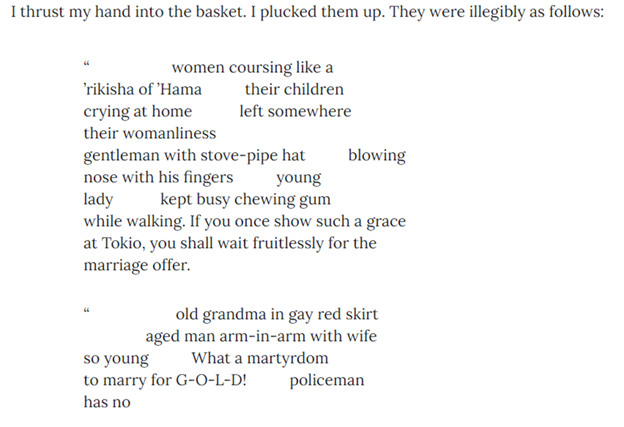
Some texts, particularly poems, have gaps or breaks between words in a single line. To reflect these gaps in your encoding, insert a caesura element, mark it as a seg, and then enter a rend value of "indent#" with the # replaced by the number of character spaces the gap should be (e.g., indent10). See step-by-step instructions below:
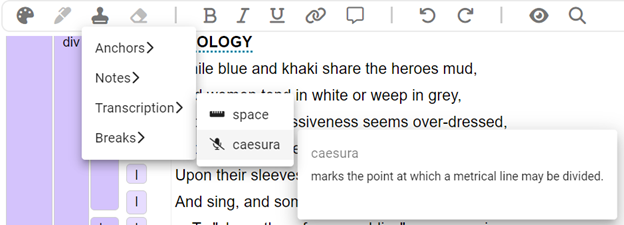
1. Insert a caesura element where you want the space to appear. Find the caesura element by clicking the Insert Inline icon in the top toolbar, then clicking Transcription, then caesura.
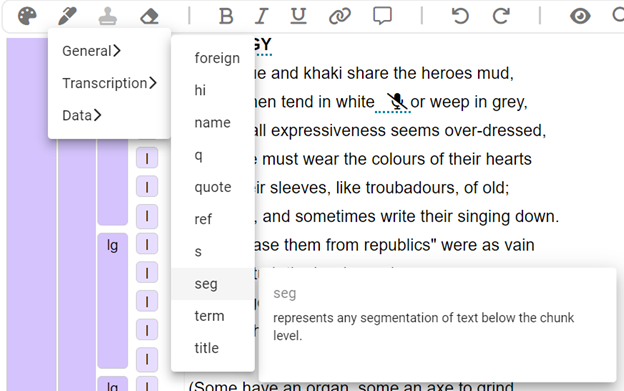
2. Next, add a space before the caesura character, and then highlight the space and the caesura element. (Note: it may appear as though only the space is highlighted, but as long as you click and drag your cursor from before the space, to the right, over the caesura icon, you will have highlighted the proper text. You will see this reflected once you mark the phrase as a seg.) Click Mark Phrase in the top toolbar, then General, then select seg to add a seg element to the highlighted space + caesura element.
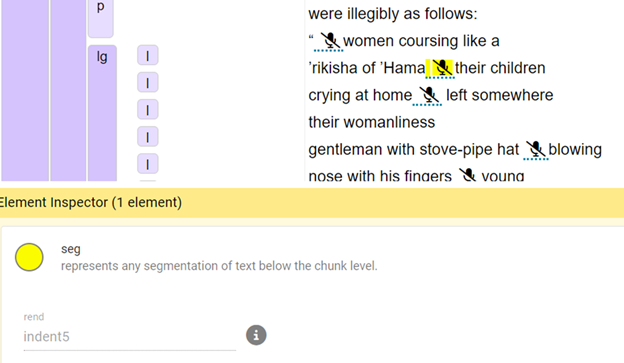
3. Give the seg element a rend value of "indent#" with the # replaced by however many character spaces you'd like the caesura to reflect. For example, you might use "indent2" for a small space or "indent10" for a larger space.
4. Your end product will show spacing between words in individual lines, like in this example:.