Thanks for your patience during our recent outage at scalar.usc.edu. While Scalar content is loading normally now, saving is still slow, and Scalar's 'additional metadata' features have been disabled, which may interfere with features like timelines and maps that depend on metadata. This also means that saving a page or media item will remove its additional metadata. If this occurs, you can use the 'All versions' link at the bottom of the page to restore the earlier version. We are continuing to troubleshoot, and will provide further updates as needed. Note that this only affects Scalar projects at scalar.usc.edu, and not those hosted elsewhere.
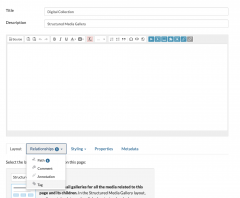
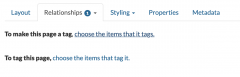
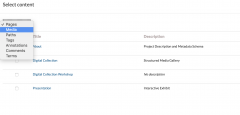
1media/images.jpgmedia/digitalpipeline-traditional.gif2019-01-04T13:06:02-08:00Andrea Davise50475e163fb87bc8bd10c6c0244468fd91e8da53163618plain2019-02-22T18:36:41-08:00Andrea Davise50475e163fb87bc8bd10c6c0244468fd91e8da5To create a structured media gallery for your collection, 1) edit the "Digital Collection" page, go to the "Relationships" tab, and select "Tag". Then, 2) select the "choose the item that it tags" link and 3) navigate to "Media" and select all of your collection items. When you have selected all of your collection items, press the "Save a view" button at the bottom of the page.
Now that you have created a structured media gallery, navigate to the "Presentation" page to develop an interactive exhibit. To make an interactive exhibit in Scalar, you can annotate items, link them to specific portions of your text, visualize them on a map or timeline (if you have added the appropriate metadata), use one of Scalar's other widgets and/or a third party plugin or platform.
As you create your exhibit, go back to the "About" page. Are there aspects of your project description or metadata schema that you would like to revise? Why or why not?
This page has paths:
1media/Spotify1.jpg2018-12-29T12:24:38-08:00Andrea Davise50475e163fb87bc8bd10c6c0244468fd91e8da5Data for HumanistsAndrea Davis254image_header2019-02-24T17:01:05-08:00Andrea Davise50475e163fb87bc8bd10c6c0244468fd91e8da5
This page references:
12019-02-22T17:39:24-08:00Step 1- Media Gallery3media/Screen Shot 2019-02-22 at 11.40.30 AM.pngplain2019-02-22T17:40:07-08:00
12019-02-22T17:40:31-08:00Step 2- Media Gallery1media/Screen Shot 2019-02-22 at 11.41.06 AM.pngplain2019-02-22T17:40:31-08:00
12019-02-22T17:41:01-08:00Step 3- Media Gallery1media/Screen Shot 2019-02-22 at 11.41.30 AM.pngplain2019-02-22T17:41:01-08:00