Scalar's 'additional metadata' features have been disabled on this install. Learn more.
How to Use Scalar: Digital Publishing for Libraries, Archives, and MuseumsMain MenuAbout This ProjectAbout the creators and purpose of this projectWhat Is Scalar?A brief introduction to what Scalar can do as a platform.Scalar in Libraries, Archives, and MuseumsWhy Scalar is a relevant tool for librarians and other information professionals to learn.How to Use ScalarStep-by-step instructions for creating your first Scalar book.More ResourcesAnnotated list of resources with more information on using SclarPaige Szmodisc78c538ae17b32016e9167236f1aa8c213efc288Elizabeth Swihart2a47b61d624c2ba01890fc87ecc1d0c25d5107a3Shenwei Chang5f647018e81e72f2978f28d4dfbea5d53d6dd876
Scalar Layouts
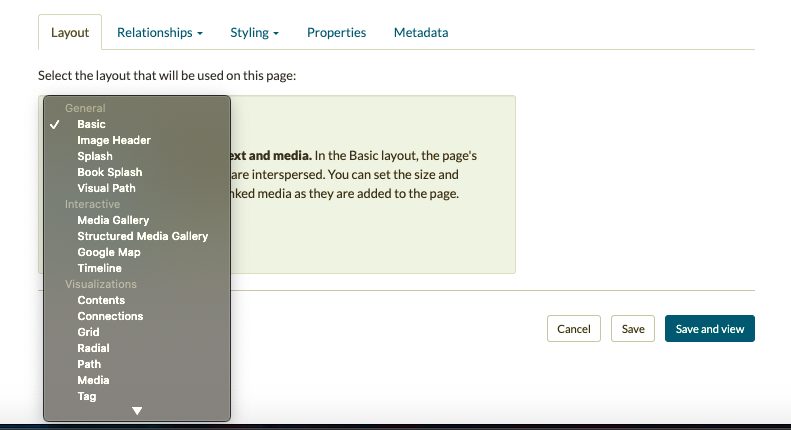
1media/Scalar Layouts_thumb.png2021-03-18T12:28:20-07:00Paige Szmodisc78c538ae17b32016e9167236f1aa8c213efc288387791Screenshot of layout options in the edit page view.plain2021-03-18T12:28:20-07:00Paige Szmodisc78c538ae17b32016e9167236f1aa8c213efc288
This page is referenced by:
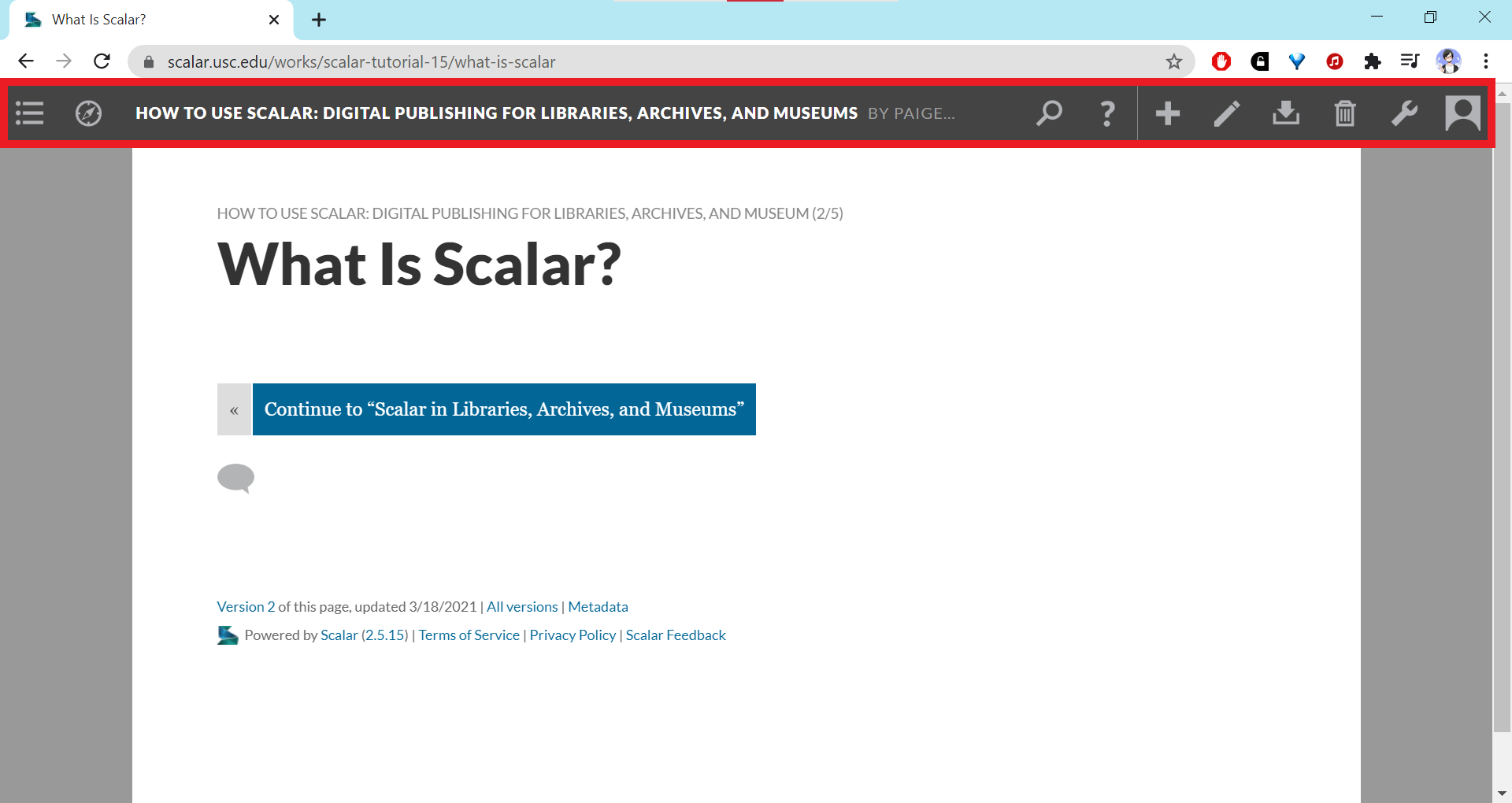
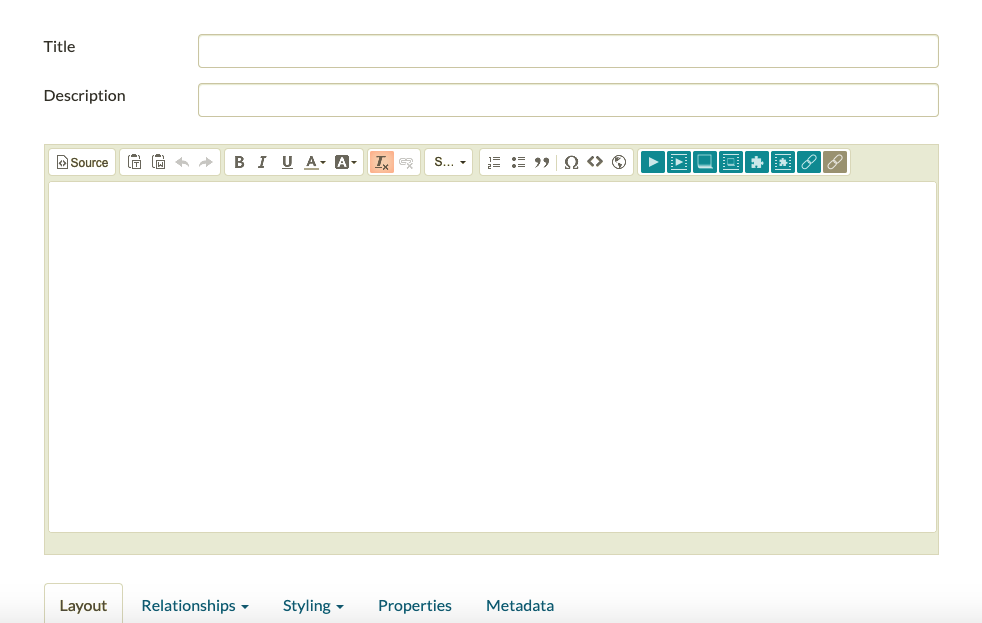
12021-03-17T14:17:19-07:00Creating Pages16How to create pages and format content on Scalar.plain2021-03-21T19:56:16-07:001. To create a page of content on Scalar, select the “+” icon in the top-right toolbar. 2. From there, you can add a title (all page titles must be unique) and description for the page, then add content like text and media (covered in the next section) to the page’s text editor. Similar to other blogging platforms, the text editor allows you to adjust text styles and alignment, headings, font color, and bulleted and numbered lists. 3. When you’re done adding content, you can select “Save and View” to see how your page will appear on the front-end of your Scalar website. To edit a page again, select the pencil “Edit” icon in the toolbar to go back into edit view.
Page Layouts
In addition to the basic page layout that allows you to combine text and media on a page, you can also choose from a variety of other layouts from categories including general, interactive, visualizations, and utility. These can range from a Title page with a large “Image Header,” media galleries, embedded Google maps or Timelines, grids, and even more visualizations. For more details on each of these layout types, reference the Scalar 2 User’s Guide on Selecting a Page’s Default Layout.