Keep going!
Adding more material
Add more photos or other kinds of media to make your page more visually appealing.Experimenting with layout
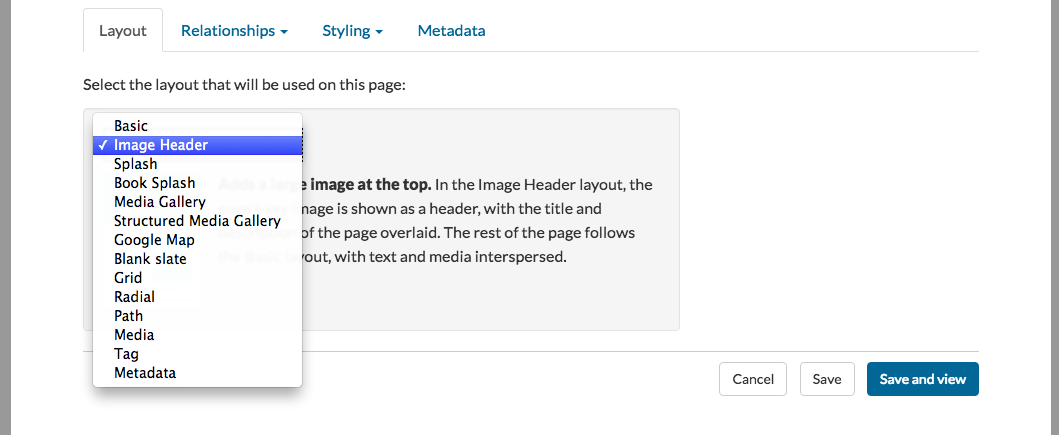
As you've seen, Scalar allows you to embed media directly into the page, or link to media that floats freely throughout the page. But you can also use a number of different media layouts, including "image header" (which features a big image floating at the top); and media gallery (which features a number of images that you can scroll through). Try modifying your Scalar project by experimenting with each of these media options. To test a layout, select the "edit" button (pencil) from the project menu. Then use the drop-down menu under "layout" to choose between options. Save and View to see what each layout does. If you hate it, don't panic! You can always go back to basic.Adding Notes and Tags
Scalar allows you to "tag" a page or media file to create links between multiple objects. For example, I might tag all my files "Dolly Parton" so that anyone searching would know what they were about to find. To create a tag, use the pencil icon to "edit" the file or media. Then, navigate to the "relationships" tab on the bottom menu and select "tag". The system will suggest that you "choose the items that tag it" with a pre-existing file, but instead we recommend that you create tags by choosing the "create page on-the-fly" option from the bottom left corner of the page. If you are tagging multiple pages with the same tag, of course, you can just select that tag.Adding a note is similar. A note is a bit of pop-up text that users can read, like this. To create a tag, highlight the text that you'd like to select. Then use the "postit" icon from the text editor to insert your note. Like in the case of a tag, we recommend that you "create page on the fly" unless you want to replicate a pre-existing note.
Annotating Media
With Scalar, you can "annotate" all kinds of media, including images and video. To annotate an image, simply open an image file and select the "paperclip" icon from the project menu. Then, drag a square over the image and type in the annotation. To annotate a video, open the video and use the paperclip icon to open the annotation editor. Use the "+" button in the editor to create an annotation. You can set start and end points, and add text - for example, you might type in key lyrics, or comment on the lyrics in place.Using Widgets
Using widgets, you can add maps, timelines, interactive visualizations and more to your Scalar book.This page has paths:
- Scalar Workshop Allyssa Guzman